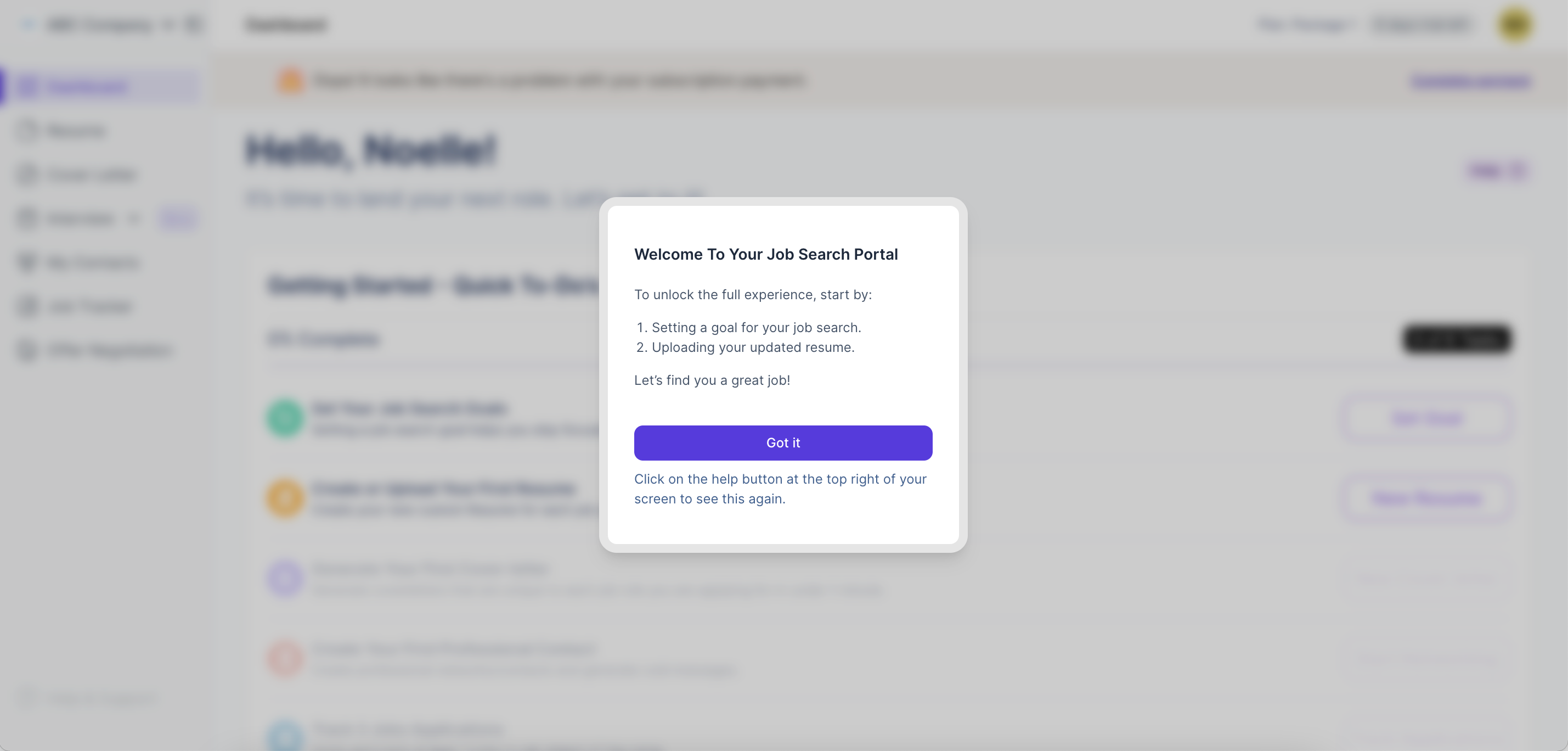
There are 5 steps you need to complete in order to access your dashboard. You should use this guide as a reference while completing steps 1-5. The following timeline will appear at the top of your screen to illustrate your setup progress. The step you are on will have a purple circle around it.

1: Domain Setup
Reference Domain Setup for guidance on correctly configuring domains.
Once you complete this step, click "save and continue" and move on to step 2.
2: UI Customization
-
1. Company Details
-
2. Brand Colors
-
3. Browser Tab Settings
-
4. Help Center
Reminder: How to Log In - Admin Only
Login to your admin platform here:
https://app.yourjobsearchgenius.ai/login.
This URL is for you to log in now and anytime you want to access your admin platform.
This URL is not used by your users or staff.
3️⃣ Add Users
Users are students/the people who will be using the career services.
You do not have to add users at this time.
If you do not want to add users now, click skip in the top right corner.
When you do choose to add users, you can add them manually, one-by-one, or by uploading a CSV.
The "Add User" screen looks like the image shown to the right.
You need to add up the following for each user:
- First name
- Last name
- Email address
💡
On the Import Users screen click "Download Template" to access a CSV file. You can use this optional template to create a list of users to upload.
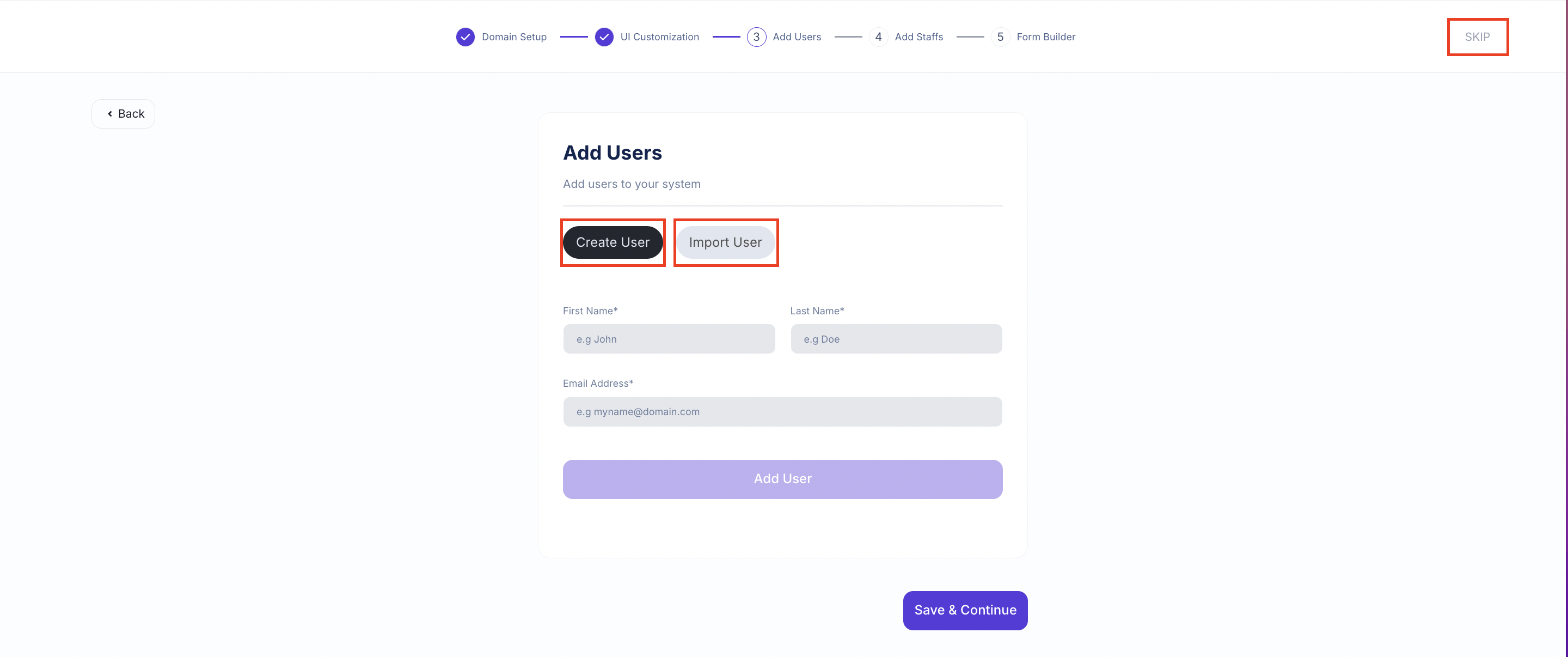
Click Create User to add one user at a time
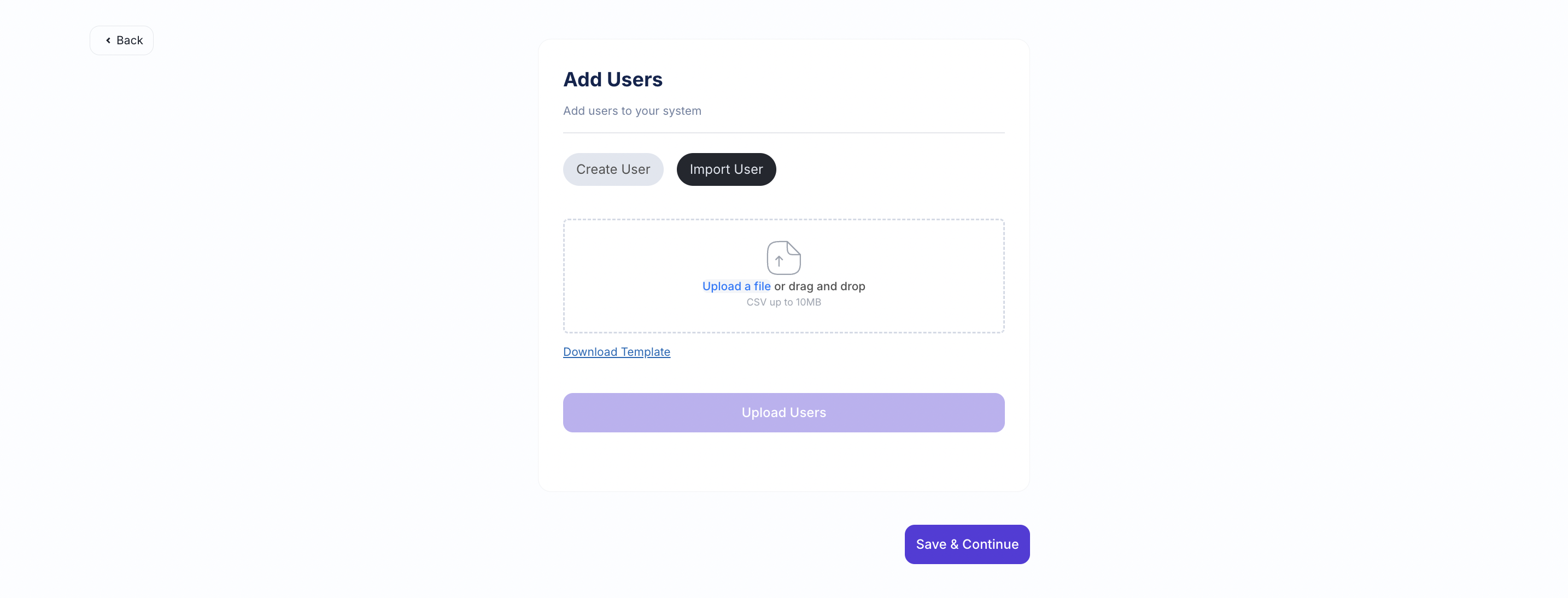
Click "Import Users" to upload a spreadsheet of users instead of manually adding them
4️⃣ Add Staff
If you have someone who works with or for you, you can add them to your account as a "staff." Staff are people like career coaches, instructors, and professors. They have the ability to review student progress. Staff have limited access to features. For example, they cannot add users like an admin can.
Let’s look at an example. An instructor at the school has 20 students. Their students are going to use the platform to receive career services support. The instructor has been told they will be responsible for monitoring student progress. You, an admin, would add the instructor as a staff member and the students as users. You would assign the staff member to the 20 users. Staff cannot create users.
If you have a team member who you want to have full access to the platform, please email the point of contact with whom you have been engaging and let them know you have a team member who you want to have access to your admin account.
Don't worry if you do not have staff right now. If this is the case, just leave the information blank and click "save and continue."
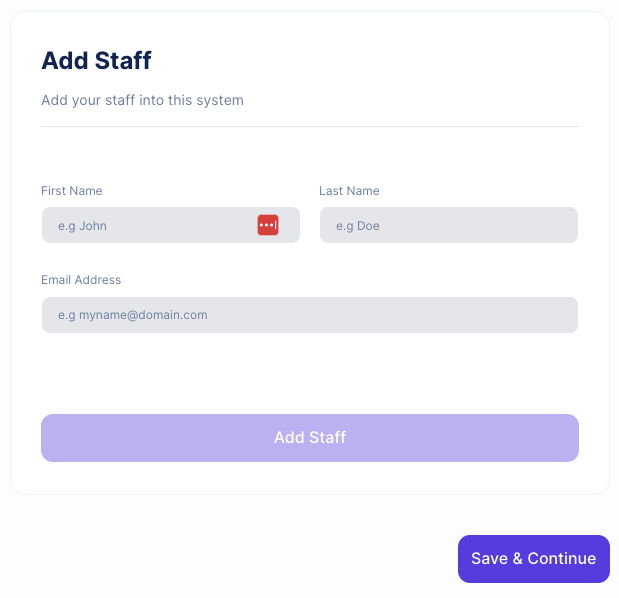
5️⃣ Form Builder
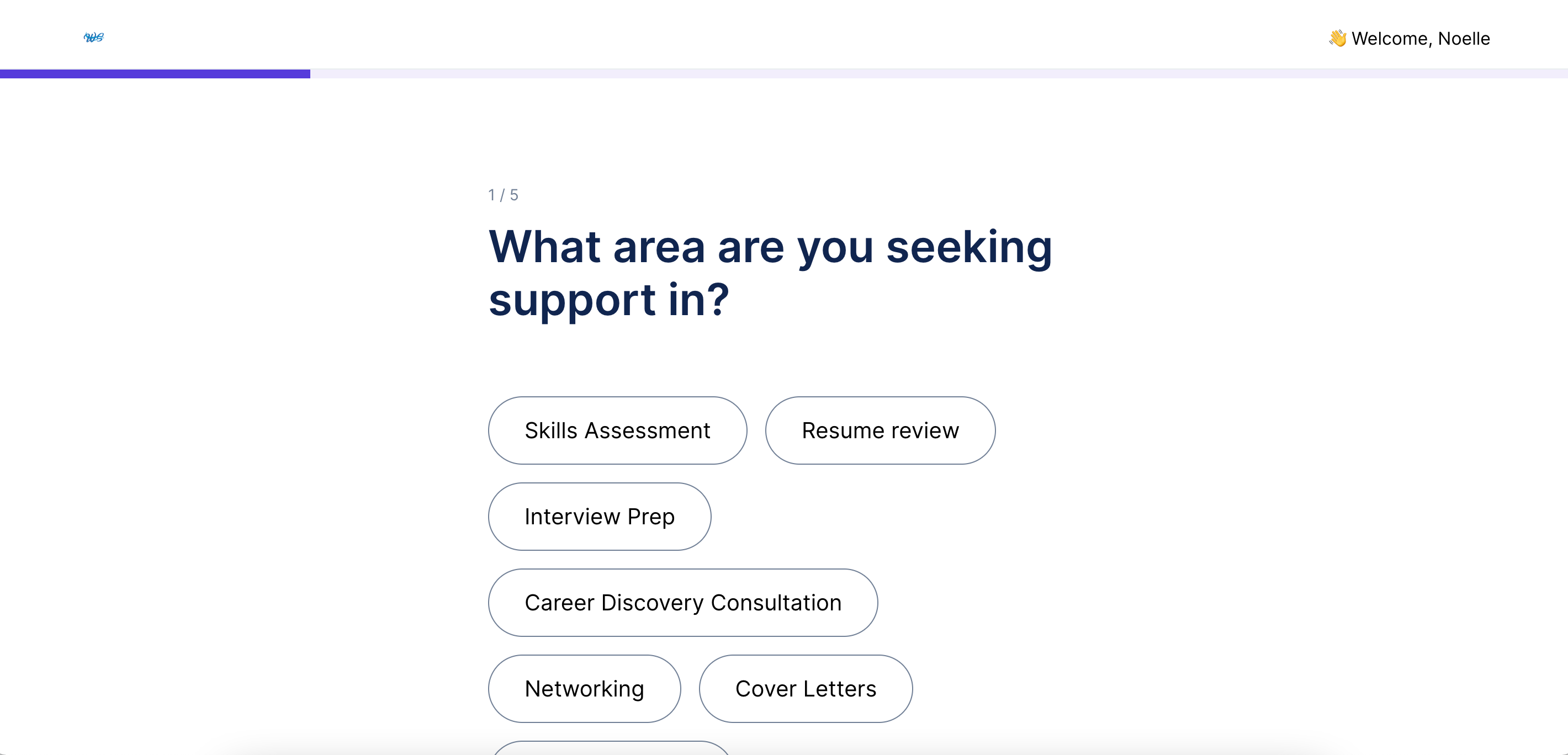
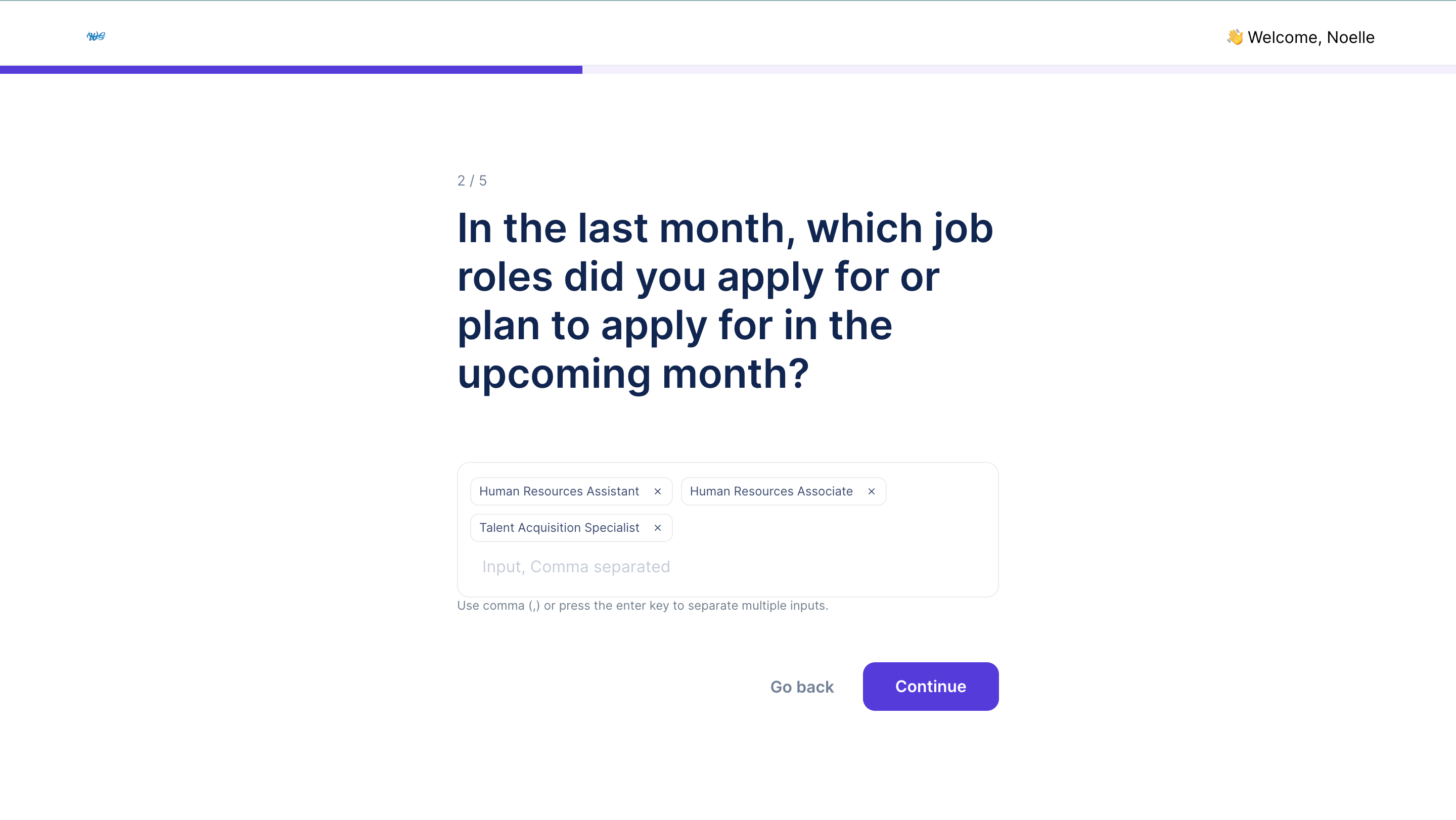
In this step, you are building a form that customers will answer after they purchase a package. The questions in this form are referred to as "onboarding questions." The purpose of these questions is for you to learn more about your job seekers. If you skip this part now, you can add them in your dashboard later.
Read Creating Insightful Onboarding Questions to learn about our recommended questions and tips for building this section.
- Here is a sample of how the questions look on the customer side:
- Here is a sample of a question with some answers inputted:
- After they answer all questions, this screen will pop up: