
Visit Staff in the left menu to access your staff management page. This page is where you go to view staff, learn if they have accessed their account, understand who manages them, and track the group they are in. Staff are people like instructors or career services staff who monitor student progress. A benefit of adding staff to your account is that they can be assigned to users, allowing them to track and manage their users' progress.
If you do not yet have staff in your account, you will see this screen:
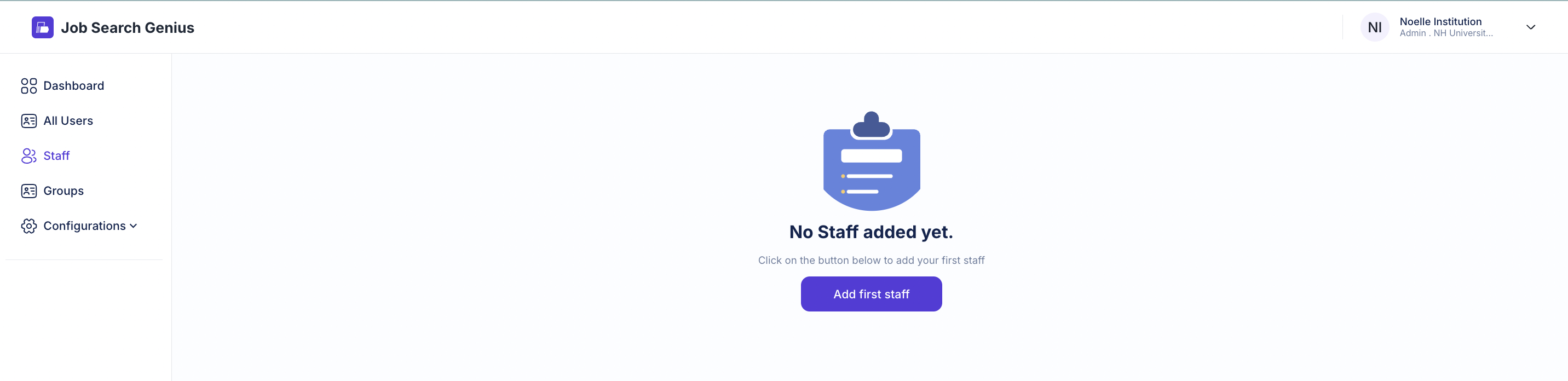
Above is what you see before you have any staff members in your account.
Adding new staff
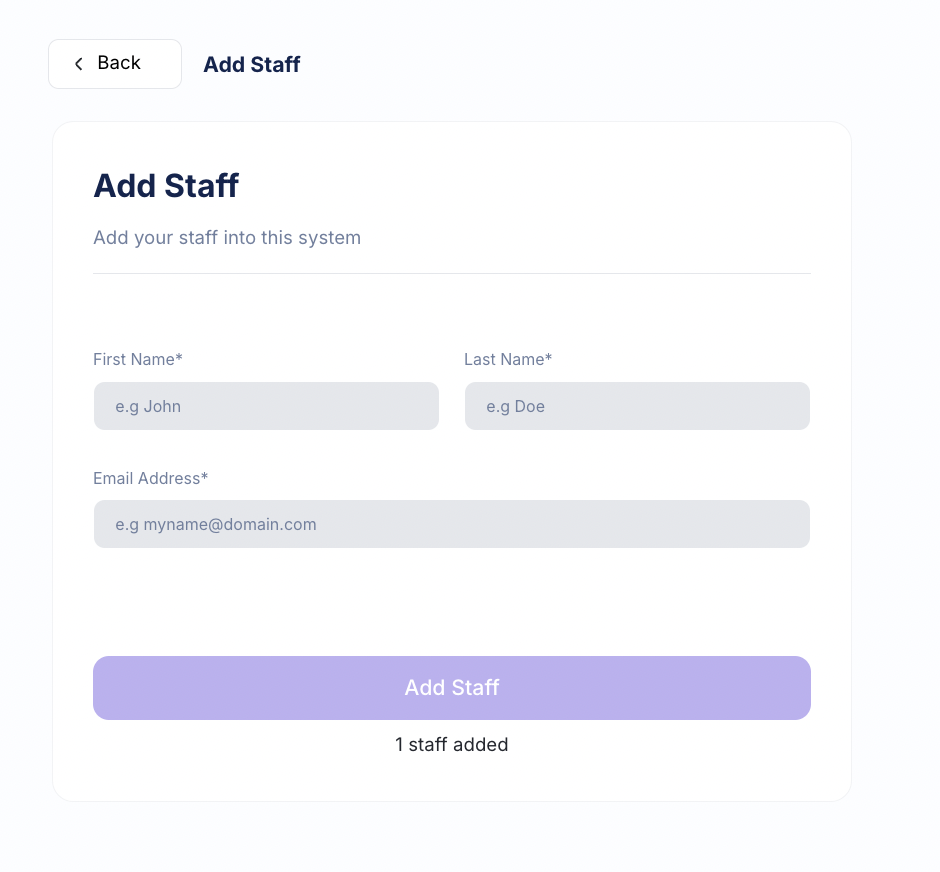
When you click the button to add a staff member, this screen to the right will pop up.
Note the following:
- The "add staff" box will brighten and become clickable after you type in a name and email address.
- You can only use an email address once.
Once you add the staff member:
- They will appear in your staff management page, like in the image below.
- They will receive an invitation to set up their account.
Staff sign up process
When you add a staff member, they will automatically receive a welcome email like this one below.
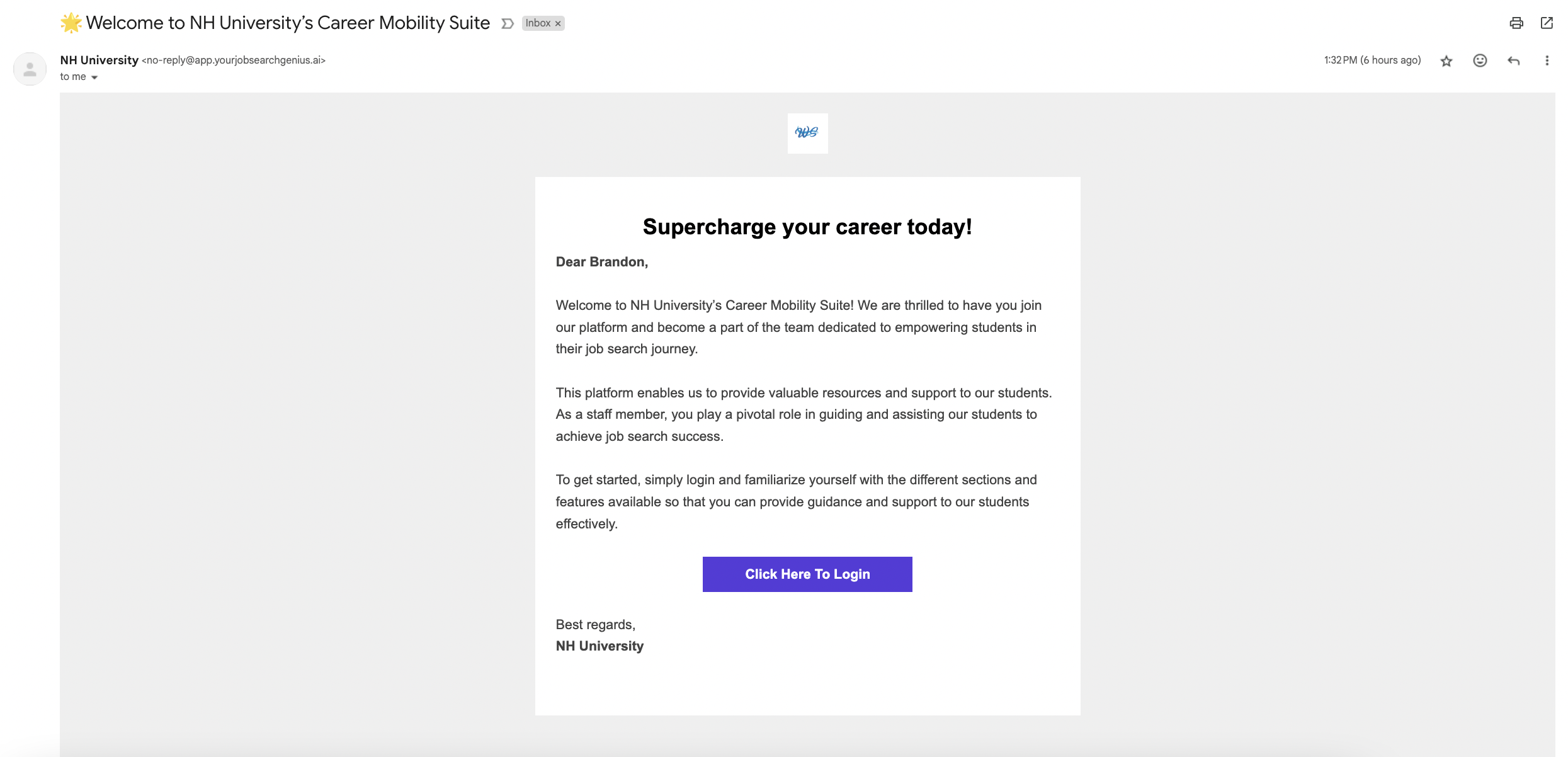
Note: The color scheme, logo, and contact information are based on the information you inputted during the 5-step set up process. You can change this anytime by visiting UI Customization in the left menu.
The staff member will click "Click Here To Login" and be prompted to create a password. They are required to use the email you set up their account with. Once they create their password, they will get access to their account.
💡
If you want to explore the Staff dashboard, we recommend adding yourself as a staff member using an email you have access to.
Managing existing staff accounts
Note the following about the staff management page (shown below):
- Click the three dots on the right side of the staff member's row to deactivate or reactivate a staff member.
- Click "apply filter" (which appears next to the search box) to filter deactivated vs. active staff members.
.png)
Above is a depiction of the staff management screen once you add a staff member
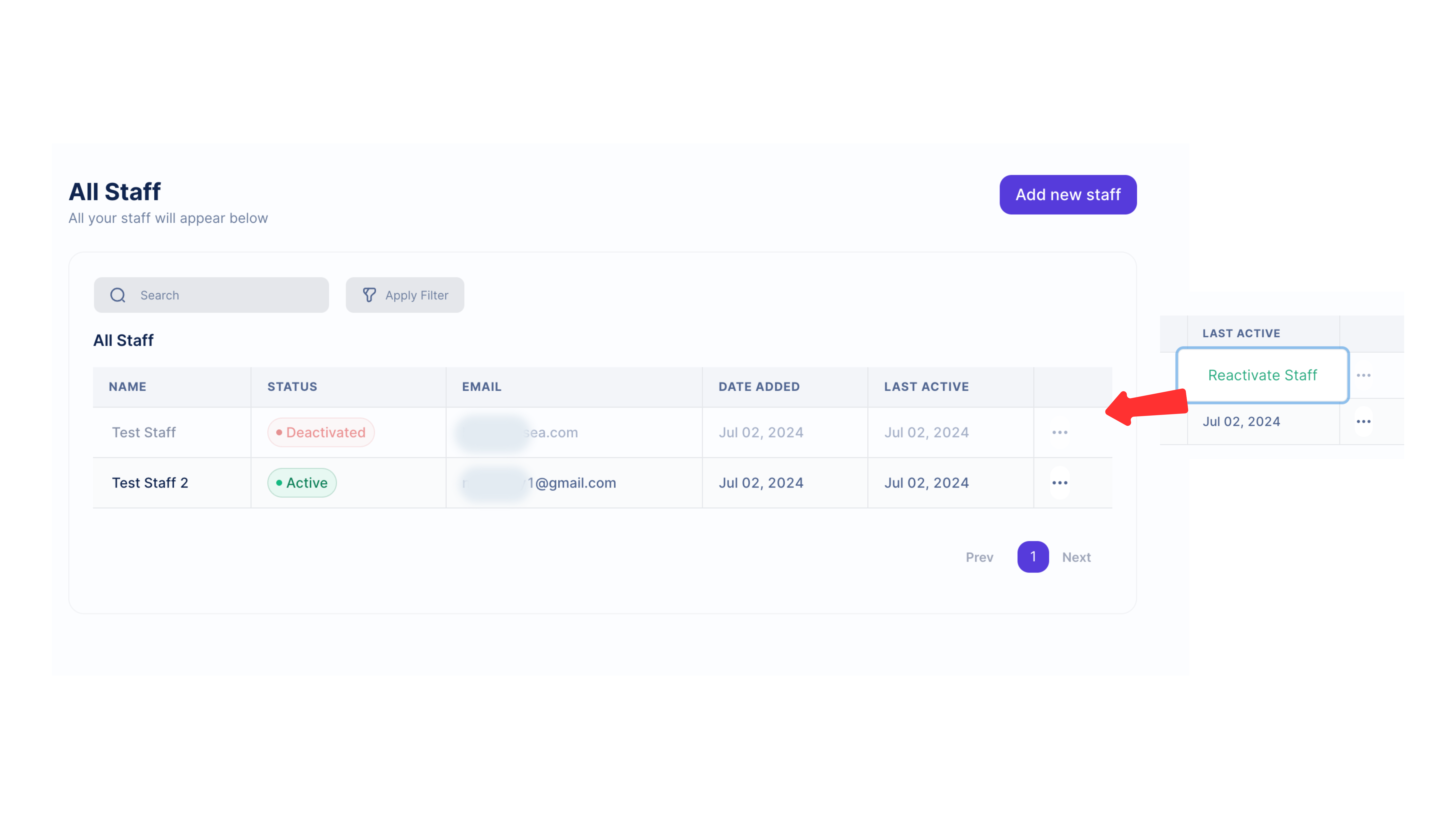
Above is a depiction of how to activate a deactivated staff member.