
The Contact Tracker helps students organize and manage their professional network during the job search process. Students can use it to keep track of recruiters, hiring managers, mentors, alumni, colleagues, and other professional connections in one place.
This feature is useful for managing outreach, tracking follow-ups, and generating personalized messages based on the student’s networking goal.
1: Access the Contact Tracker
To get started, click My Contacts or Contacts from the left-side menu.
This will open the Professional Contacts page, where students can view and manage their saved contacts.
(From the left-side menu, click My Contacts to open the Professional Contacts page.)
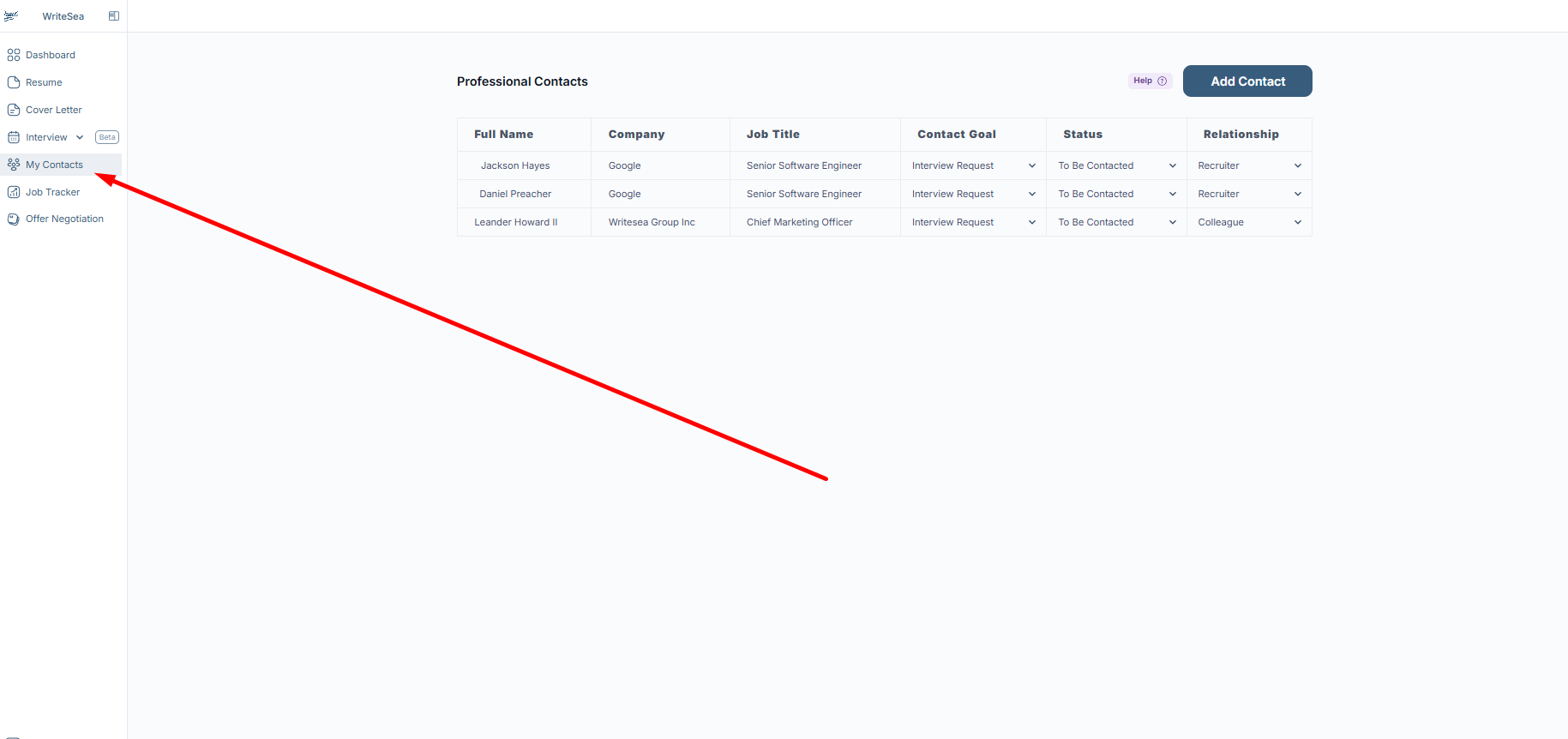
On this page, students can view existing contacts, including their name, company, job title, contact goal, current status, and relationship type.
2: Add a New Contact
To add a new professional connection, click Add Contact.
Students can use this option to save important contact details for people they meet through networking, career fairs, interviews, referrals, LinkedIn, or professional events.
(Click Add Contact in the top-right corner to create a new professional contact.)
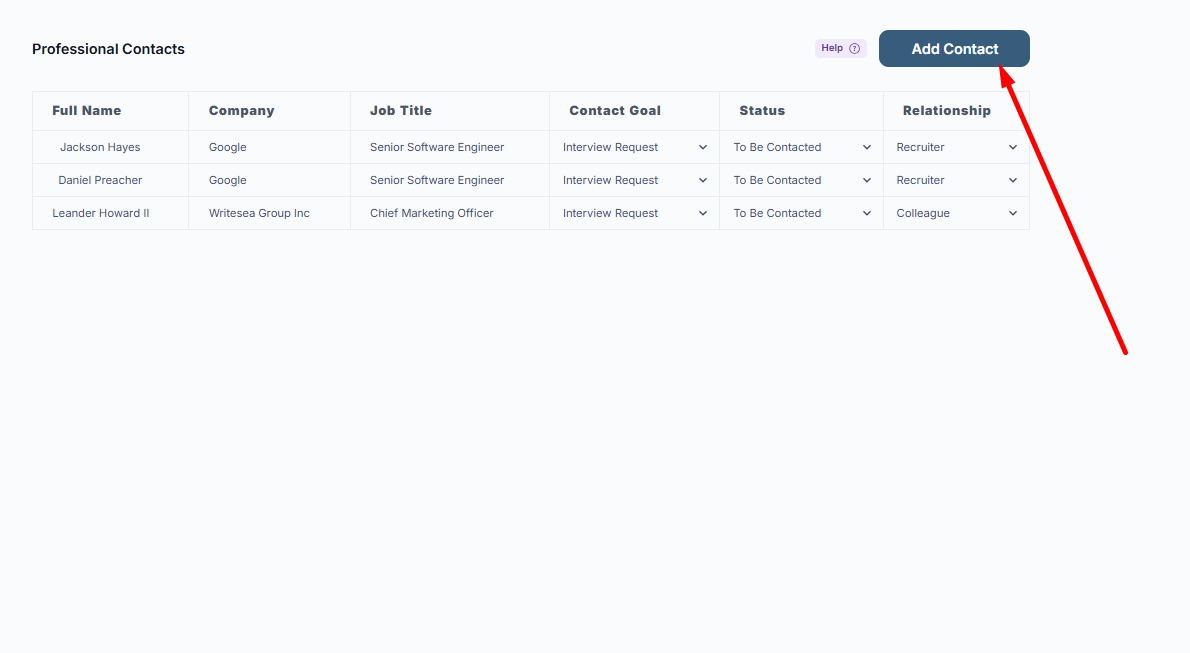
A contact form will open where students can enter the person’s professional details.
Students may be asked to add information such as:
- Full Name
- Phone Number
- Job Title
- Current Company
- Email Address
- Location
- Contact Goal
- Relationship With Contact
- Status
3: Set the Contact Goal
The Contact Goal helps define the purpose of the connection. This makes it easier to understand why the student is reaching out to that person.
Students can choose a goal such as:
- Interview Request
- Request for Referral
- Mentorship
- New Role
(Use the Contact Goal dropdown to select the reason for connecting with this person.)
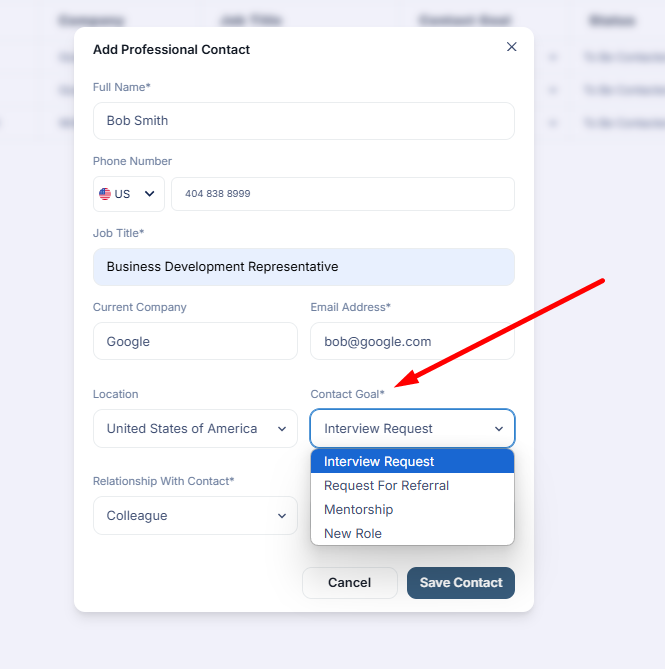
Choosing the correct goal helps the platform generate a more relevant and personalized outreach message later.
4: Define the Relationship With the Contact
Next, students should select how they are connected to the person.
Relationship options may include:
- Colleague
- Friend
- Recruiter
- Mentor
- Alumni
- Manager
(Use the Relationship With Contact dropdown to describe how the student knows or is connected to the person.)
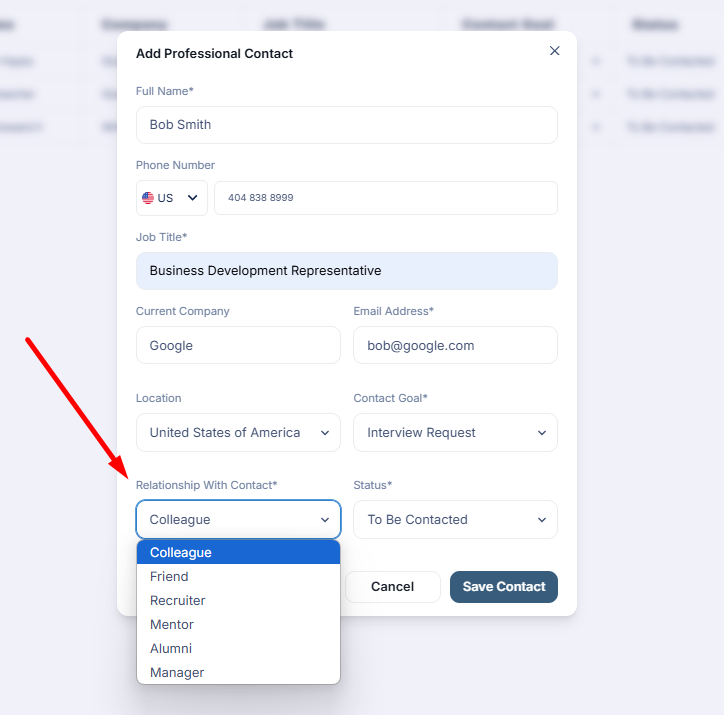
This helps organize contacts clearly and gives better context when following up or generating messages.
5: Set the Status of the Relationship
The Status field helps students track where they are in the outreach process.
Students can choose a status such as:
- To Be Contacted
- Contacted
- Follow-Up Needed
- Meeting Scheduled
(Use the Status dropdown to track the current stage of communication with the contact.)
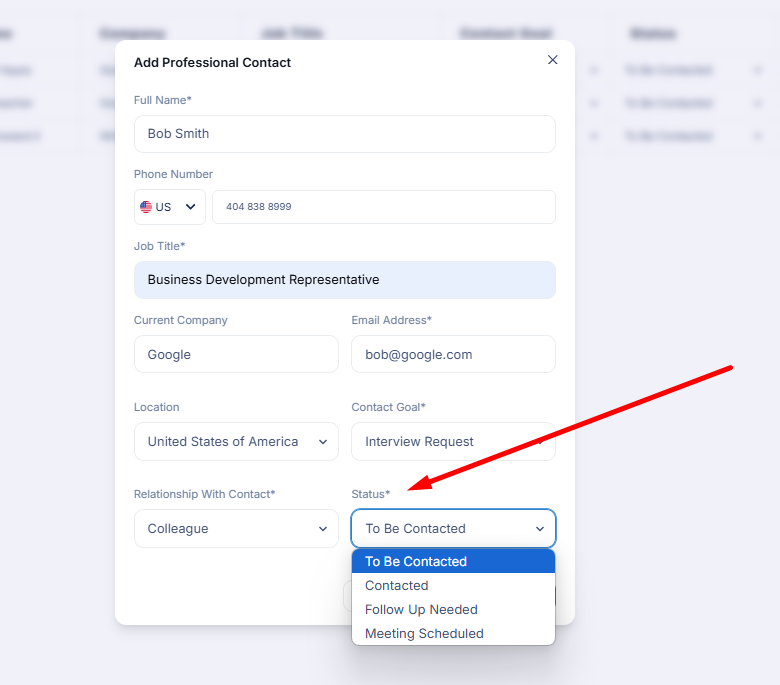
Updating the status regularly helps students stay organized and avoid missing important follow-ups.
6: Generate Custom Messages
After saving a contact, students can open the contact and use the Generate Message option to create a personalized outreach message.
Students can add a little context, such as where they met the person, what they discussed, or what they want to ask. The platform will then generate a message that can be copied and used in email, LinkedIn, or another communication platform.
(Click the contact’s name, then click Generate Message to create a personalized message.)
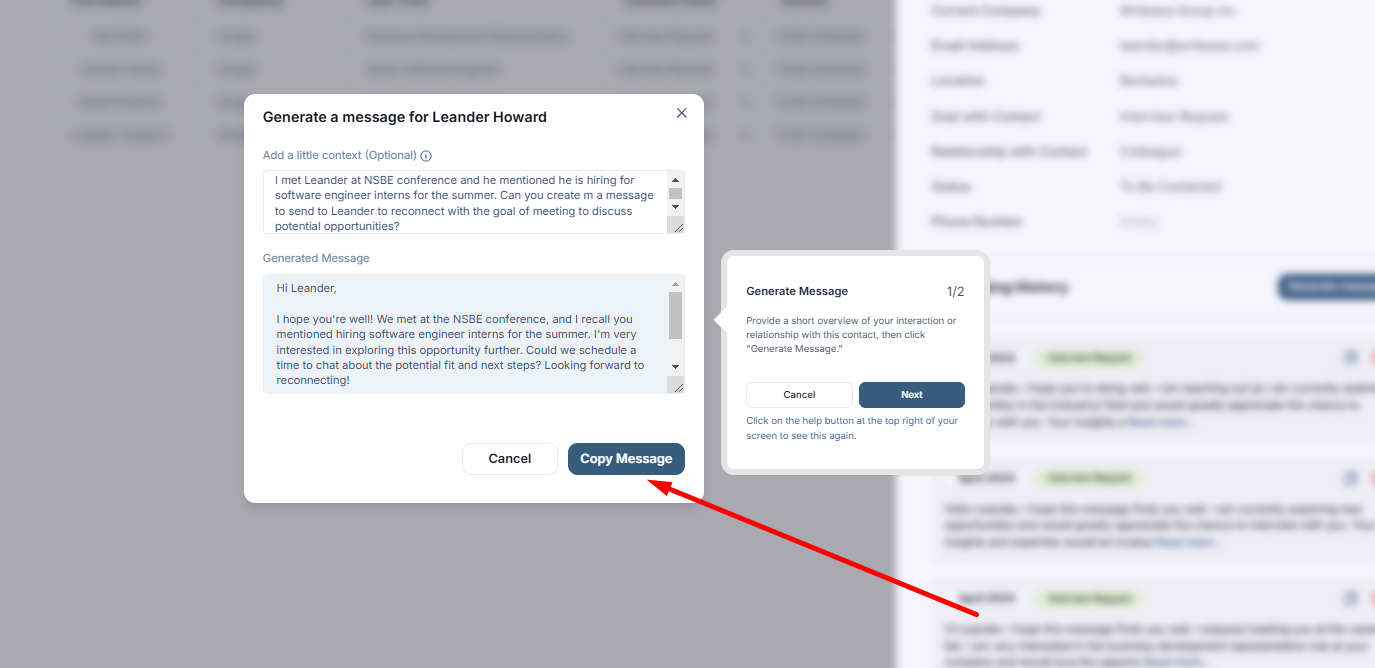
Review the generated message, make any needed edits, and click Copy Message to use it outside the platform.
7: Stay Organized and Follow Up
The Contact Tracker helps students manage their professional relationships throughout the job search process.
Students can use it to:
- Save important professional contacts
- Track outreach goals
- Monitor communication status
- Organize recruiters, mentors, alumni, and colleagues
- Generate personalized outreach messages
- Follow up at the right time
By keeping all contacts in one place, students can build stronger professional relationships and stay more organized during their career search.