
The Job Preparation tool helps students prepare for interviews by using a job description to generate relevant interview questions, sample responses, and interview guidance. This feature is useful when students want to practice for a specific role before applying or attending an interview.
Training Video
Watch the training video for a quick overview of how to use the Job Preparation feature.
1: Access the Job Preparation Tool
To get started, click Interview from the left-side menu, then select Job Preparation.
(From the left menu, open Interview and click Job Preparation.)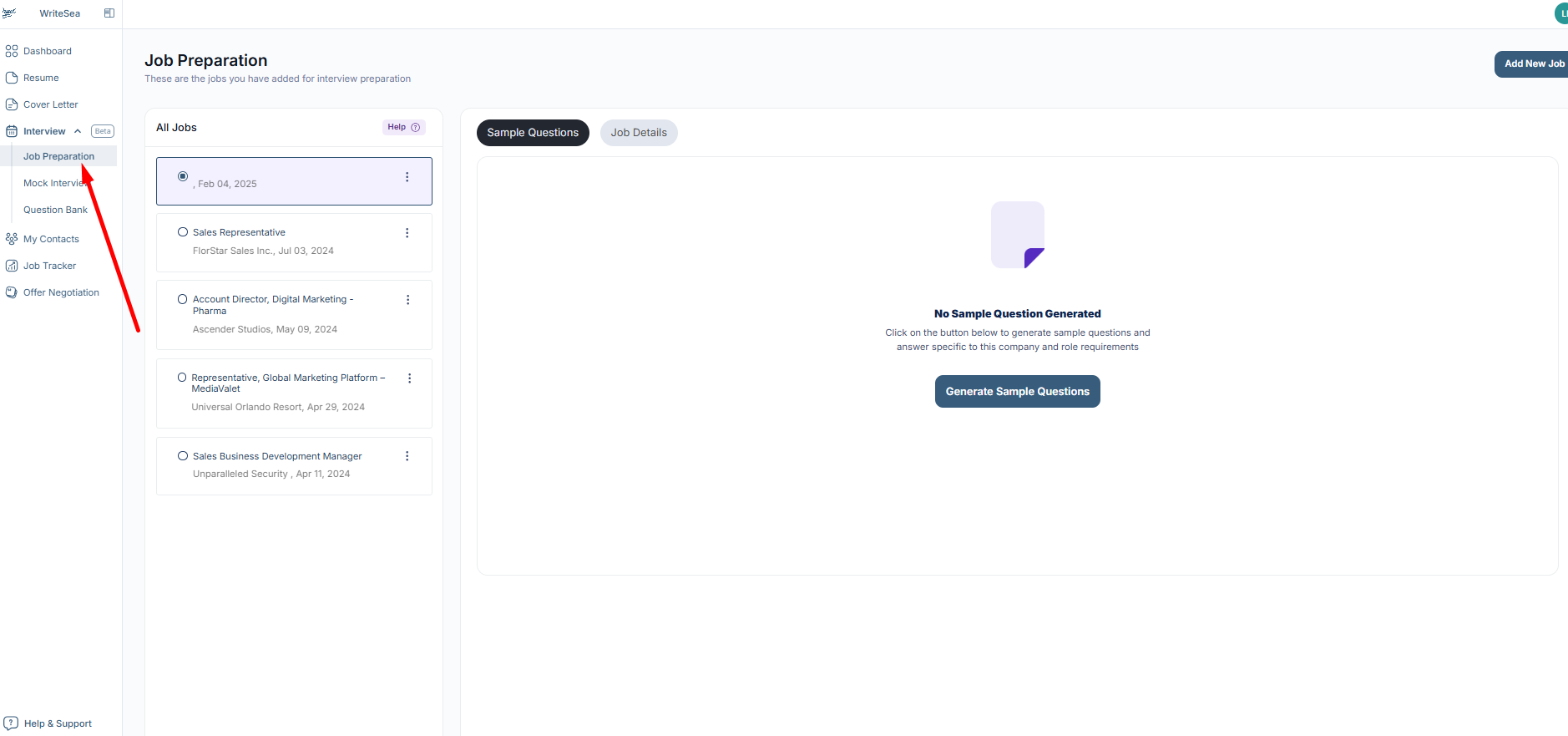
This will open the Job Preparation page, where students can view saved jobs and prepare interview questions for a selected role.
2: Add or Select a Job
On the left side, students can view jobs they have already added or imported into the platform.
To prepare for a new role, click Add New Job and enter the job details or job description.
(Select an existing job from the list, or click Add New Job to prepare for a different role.)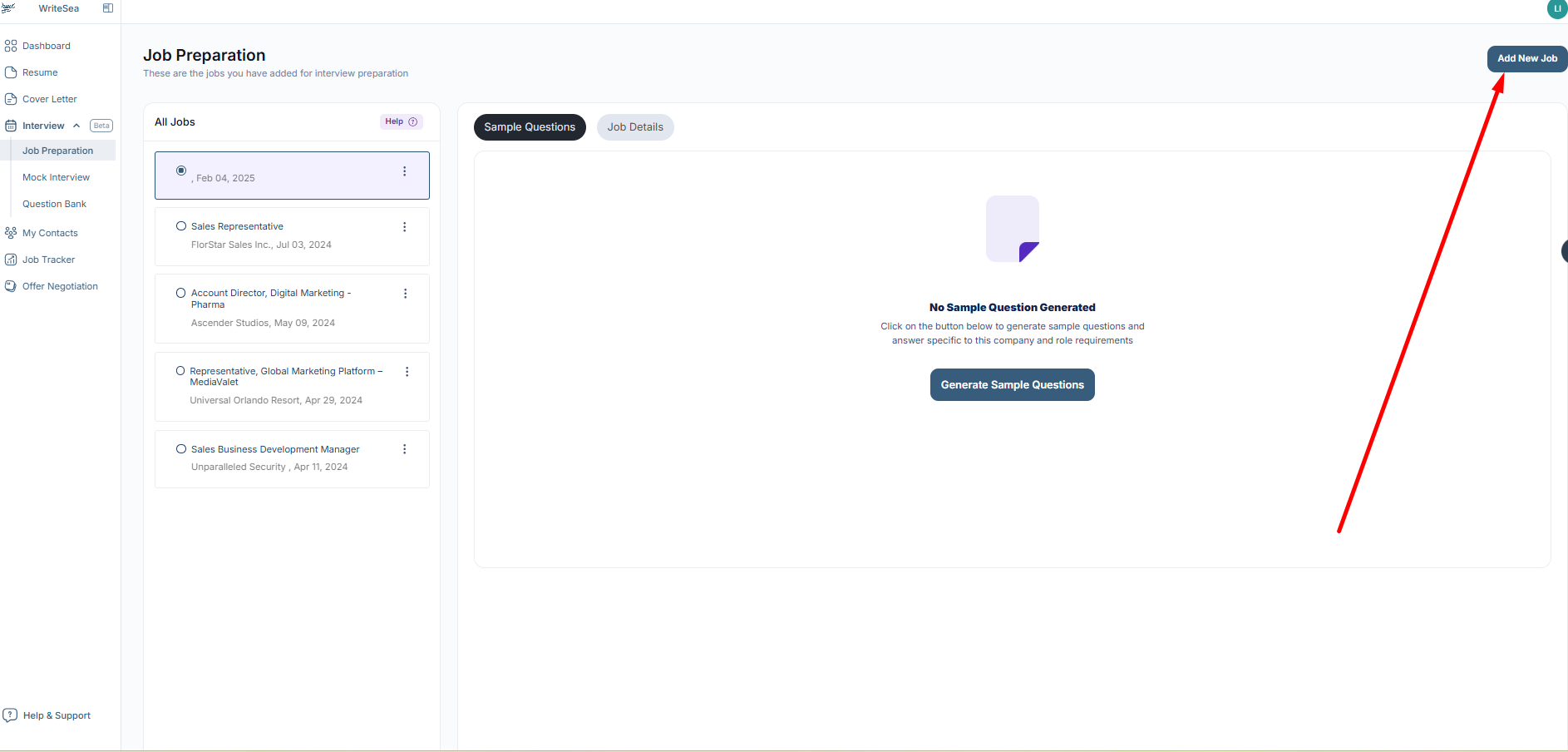
Adding the correct job description helps the platform create more relevant interview questions based on the role, responsibilities, and required skills.
3: Generate Sample Interview Questions
After selecting a job, click Generate Sample Questions.
The platform will review the job description and create interview questions related to the role.
(Click Generate Sample Questions to create role-specific interview questions.)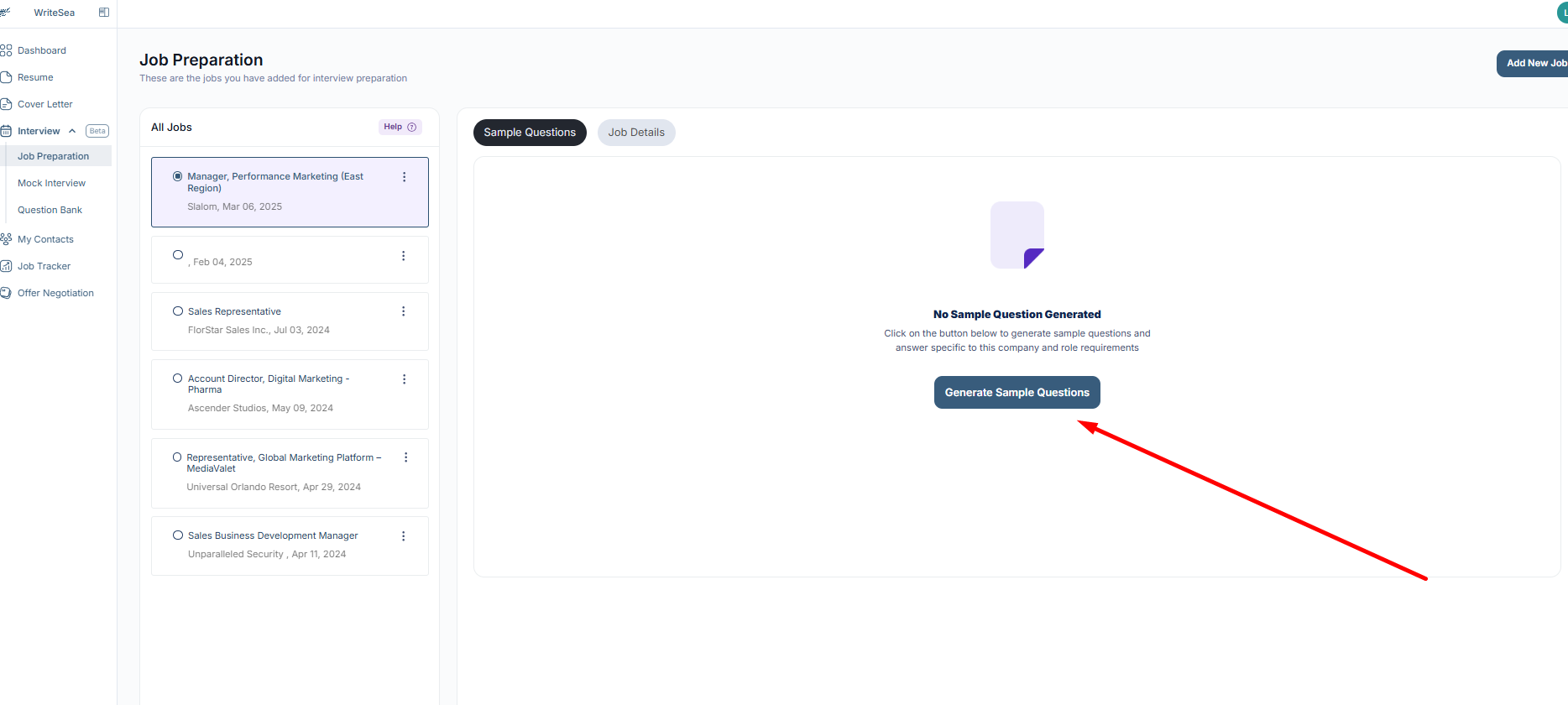
The generated questions can help students understand what an employer may ask during an interview for that specific position.
4: Review the Interview Questions
Once the questions are generated, review the list carefully.
Students can click on any question to focus on that specific interview topic.
(Review the generated questions and select one that you want to practice.)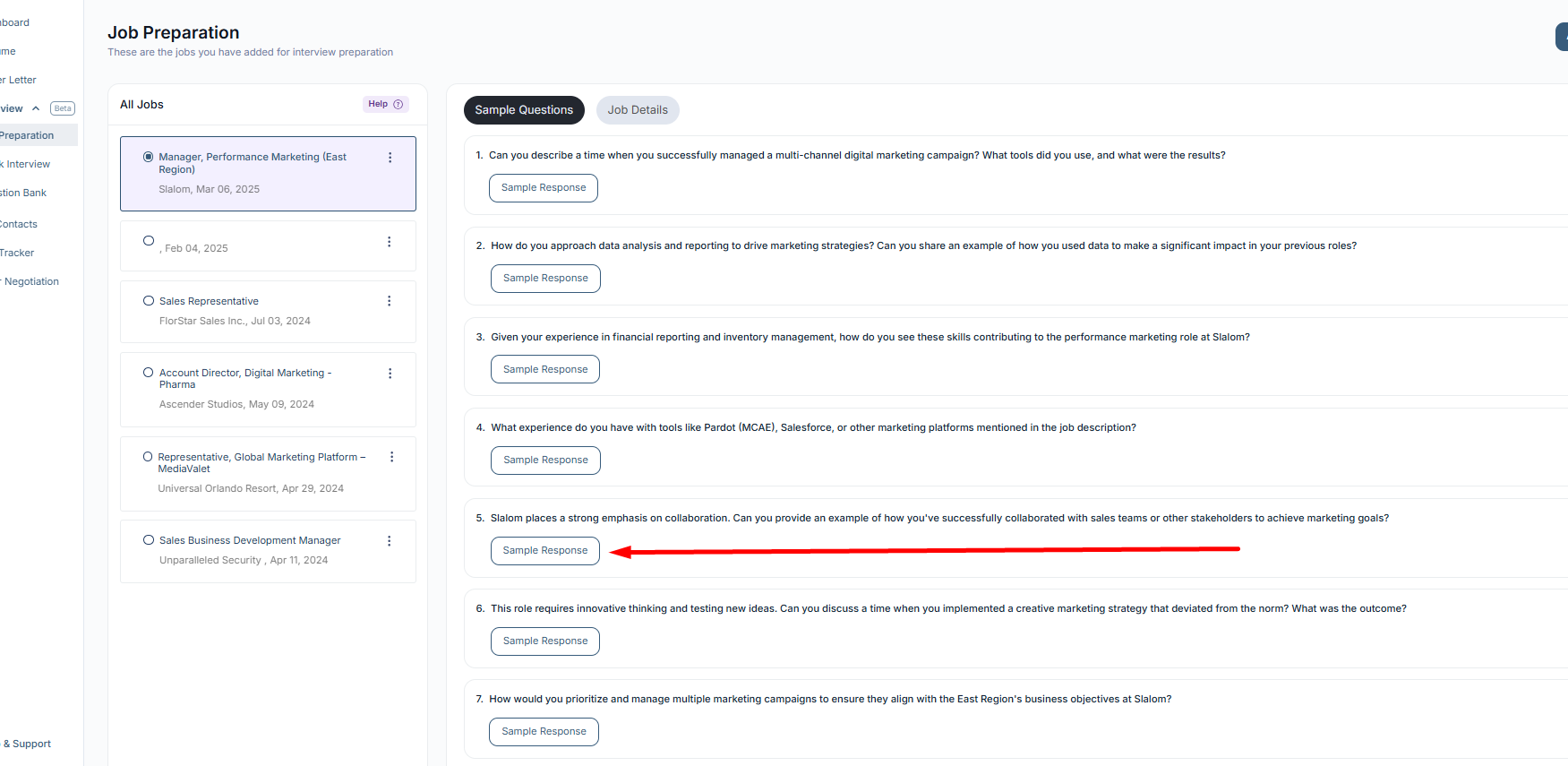
Students should choose questions that feel important, challenging, or closely related to the job they are preparing for.
5: View and Customize Sample Responses
Click Sample Response to view an example answer for the selected question.
The sample response gives students an idea of how they can structure their answer, but they should personalize it using their own experience.
(Click Sample Response to view an example answer.)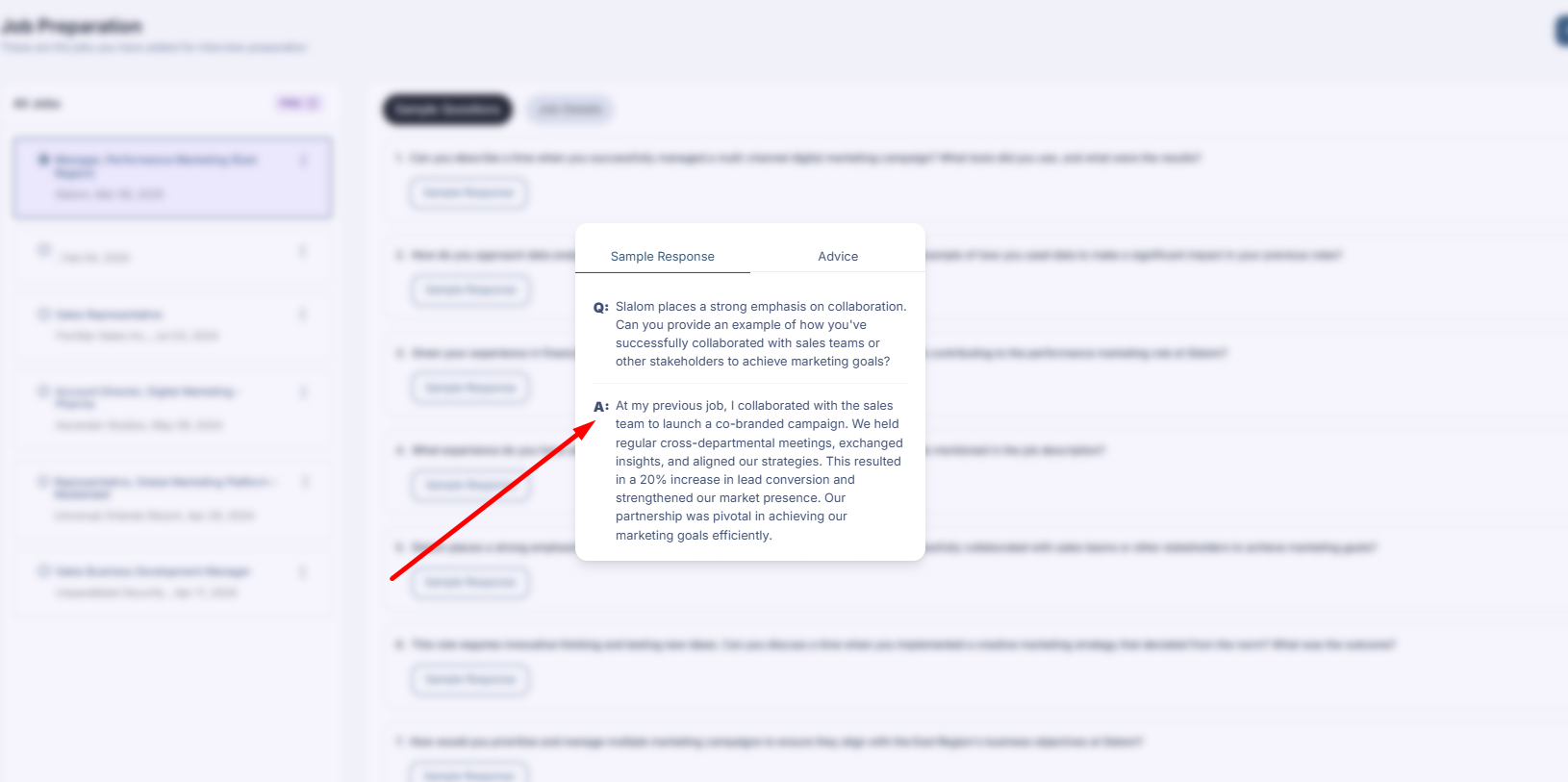
Students should use the response as guidance and adjust it with their own skills, projects, work experience, coursework, or achievements.
6: Get Interview Advice
Students can click Interview Advice to receive tips on how to answer the selected question more effectively.
This guidance may help students understand what to include, how to structure the answer, and how to make the response stronger.
(Click Interview Advice to view tips for answering the question.)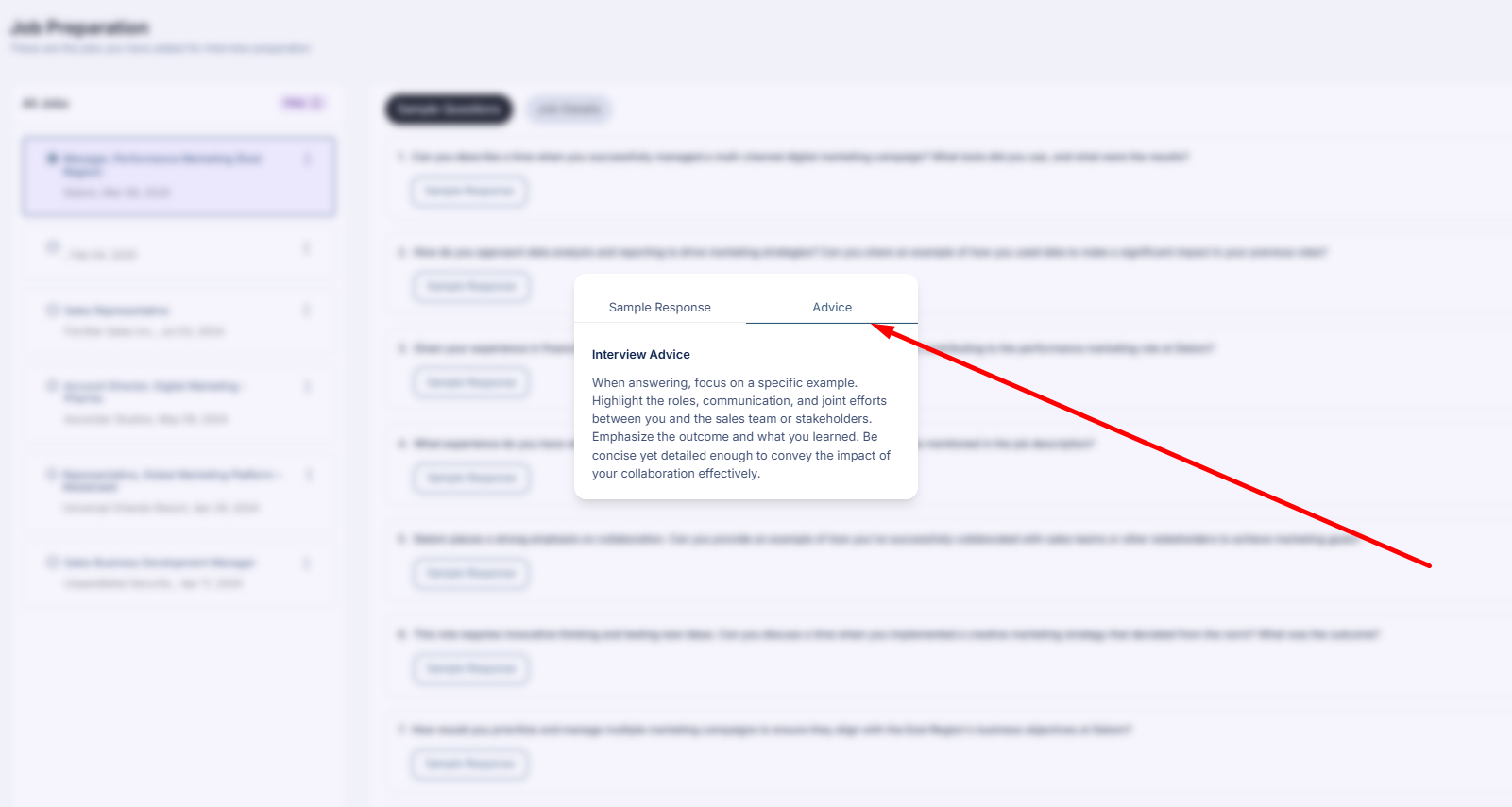
Students can use these tips to improve their answer before practicing it out loud or using it in a real interview.
7: Practice with Multiple Questions
Students should repeat the process with different questions to prepare for a wider range of interview topics.
They can:
- Review multiple questions
- Study sample responses
- Read interview advice
- Practice answers out loud
- Personalize responses based on their own background
Why This Feature Is Useful
The Job Preparation tool helps students prepare for interviews in a more focused way. Instead of practicing general questions only, students can prepare using questions based on the actual job description.
This helps students feel more confident, understand what the employer may be looking for, and create stronger answers before the interview.