
The Mock Interview feature helps students practice real interview scenarios using AI-generated questions, timed responses, transcripts, and performance feedback. Students can use this tool to prepare for interviews, improve their answers, and build confidence before speaking with an employer.
Training Video
Watch the training video for a quick walkthrough of how to complete a mock interview in WriteSea.
1: Access the Mock Interview Tool
To begin, click Interview from the left-side menu, then select Mock Interview.
Next, click Create Mock Interview to start setting up a new practice interview.
(From the left menu, open Interview, select Mock Interview, and click Create Mock Interview.)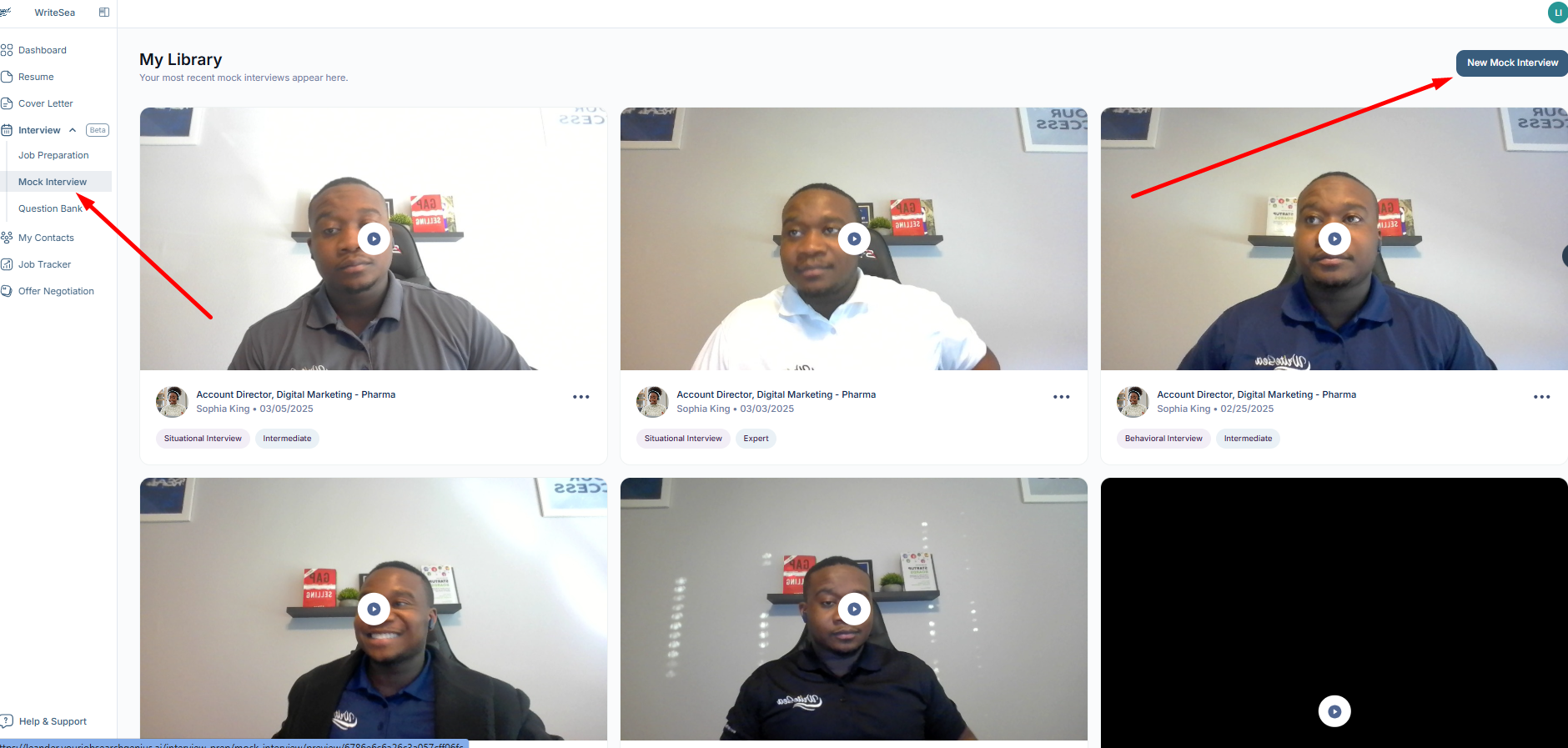
This will open the mock interview setup process, where students can choose the job, interview stage, difficulty level, and interviewer avatar.
2: Choose a Job for Your Interview
Students can select a job from their existing jobs or add a new job listing.
They can:
- Select a saved job from the platform
- Add a new job manually
- Use a job description to make the interview more relevant
Choosing the correct job helps the platform generate questions based on the role and its requirements.
(Select an existing job or click Add New Job to enter a new job listing.)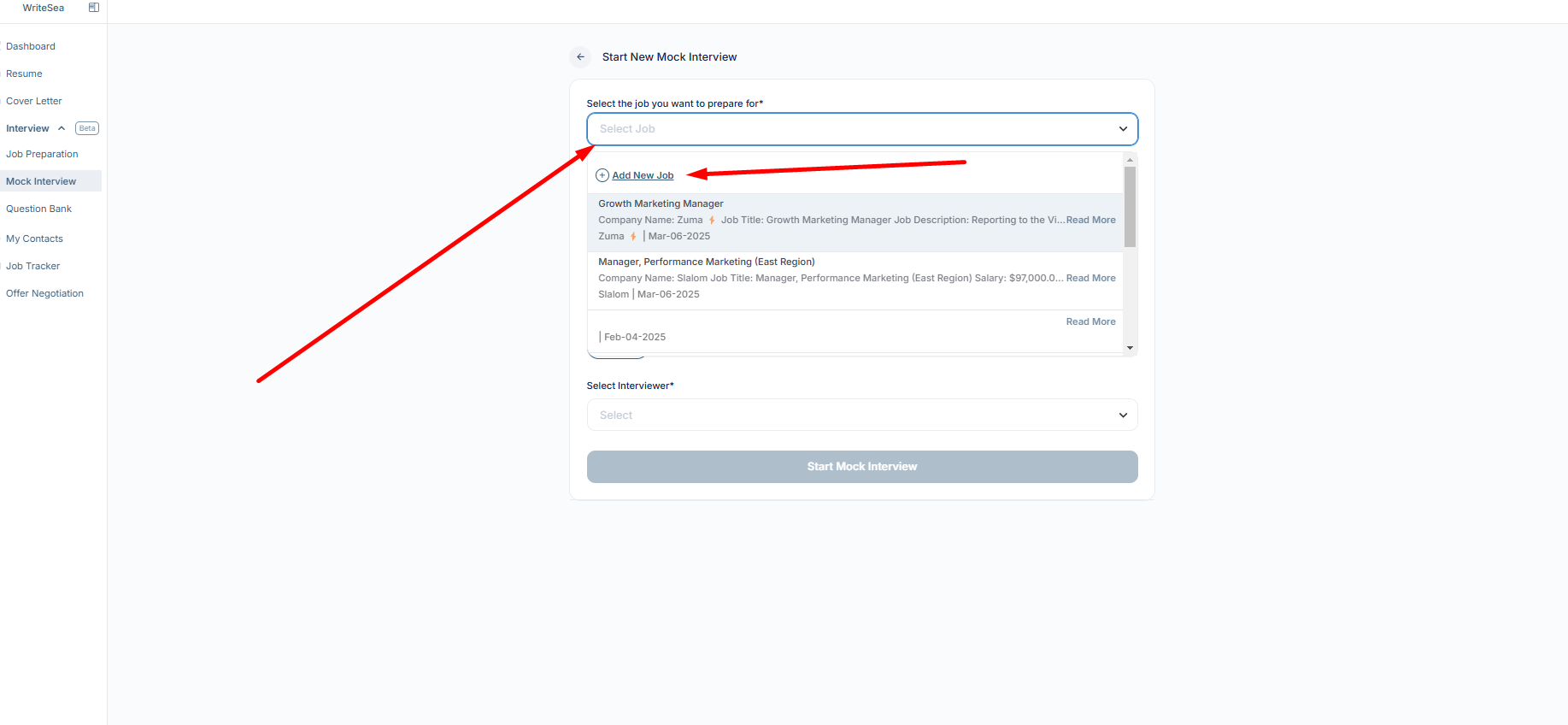
The selected job gives the AI more context, so the interview questions can better match the role the student is preparing for.
3: Select the Interview Stage
Next, choose the type of interview you want to practice.
Available interview stages may include:
- Intro Call
- Behavioral Interview
- Technical Interview
- Situational Interview
- Culture Fit Interview
Each stage focuses on different types of questions.
(Choose the interview stage that best matches the type of interview you want to practice.)
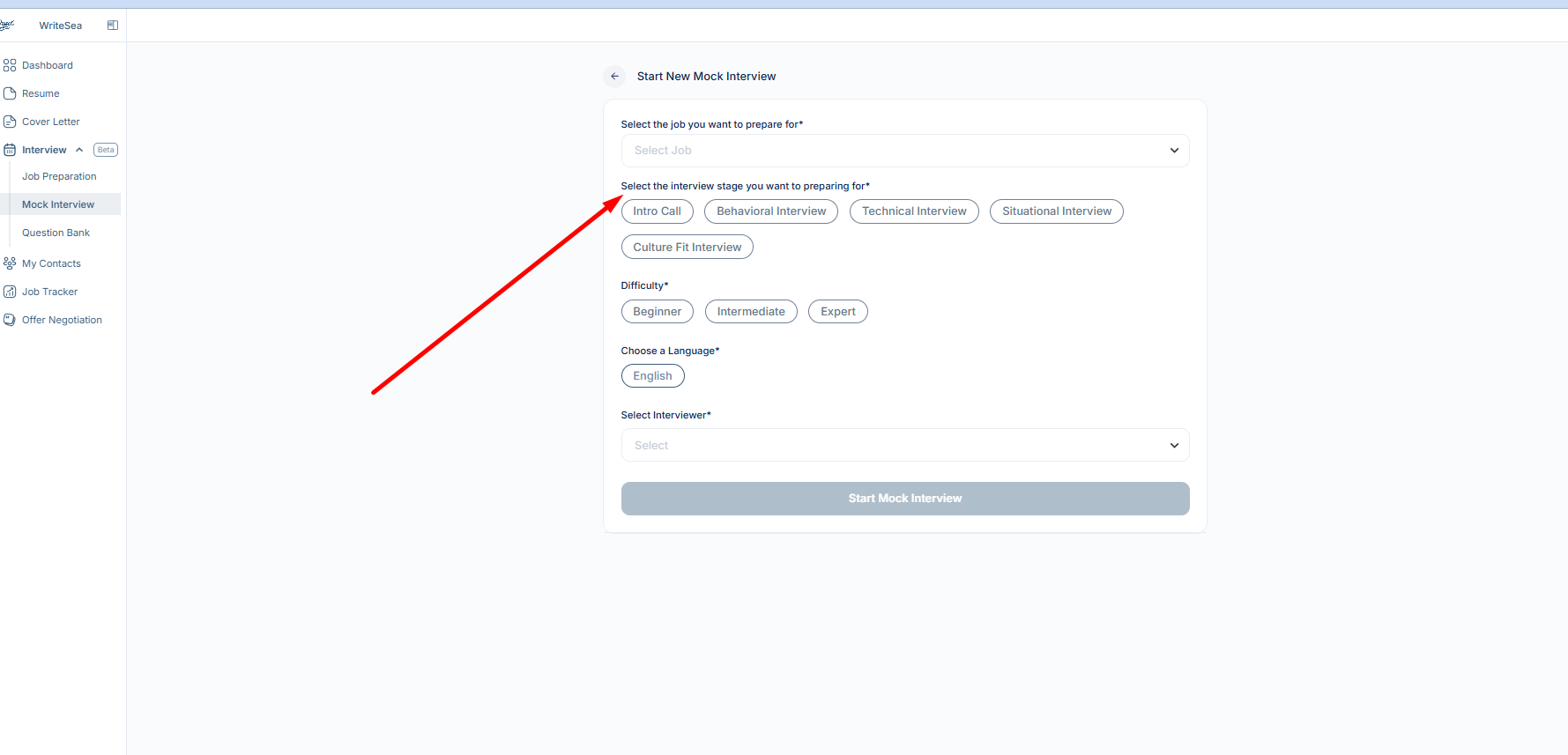
For example, select Behavioral Interview to practice experience-based questions, or Technical Interview to prepare for role-specific skill questions.
4: Set the Difficulty Level
Choose the difficulty level based on your current preparation level.
Options may include:
- Beginner — easier questions for early practice
- Intermediate — moderate questions for standard preparation
- Expert — more challenging questions for advanced practice
(Select the difficulty level that matches your comfort level and interview preparation needs.)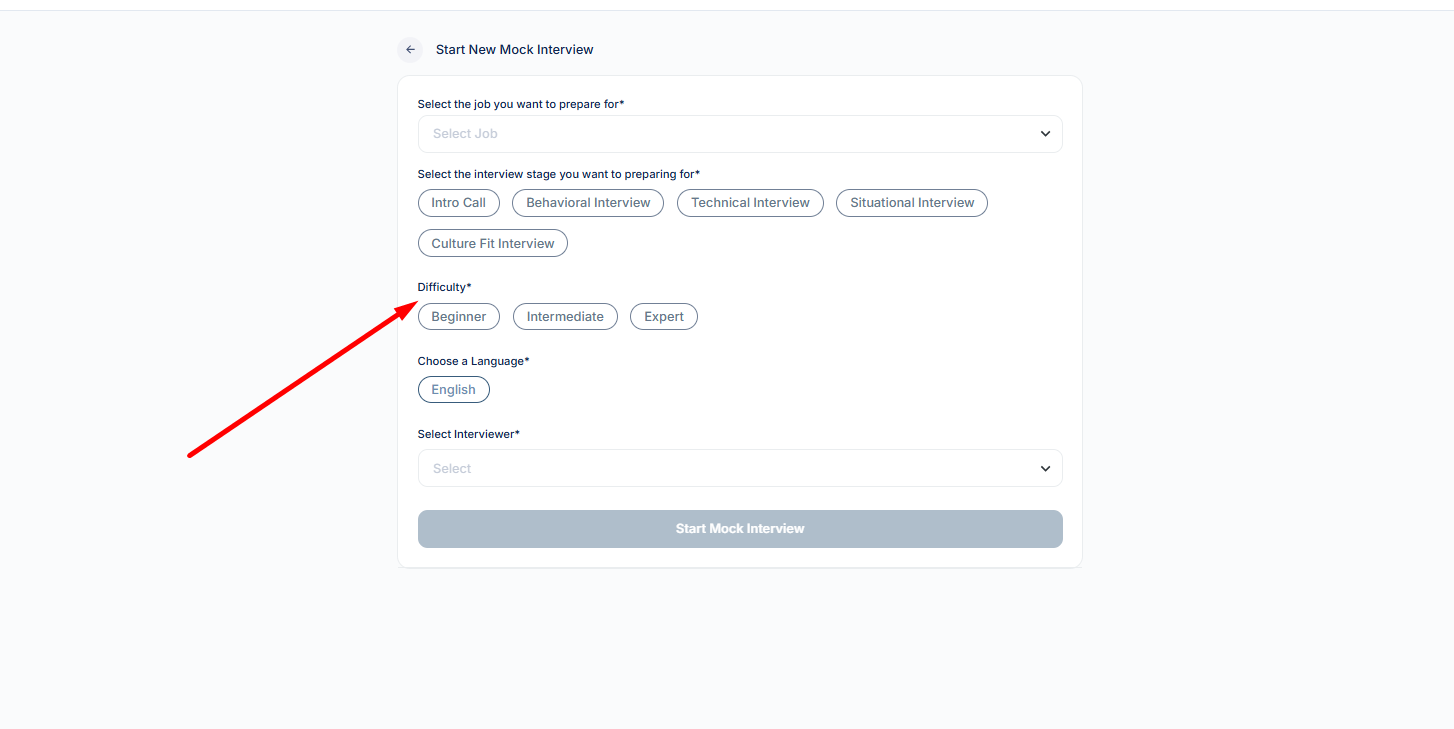
Students can start with Beginner or Intermediate, then retake interviews at a higher level as they improve.
5: Pick Your Interview Avatar
Students can choose an AI interviewer avatar for the mock interview.
This helps make the practice experience feel more interactive and realistic.
(Select the AI interviewer avatar you want to use for your mock interview.)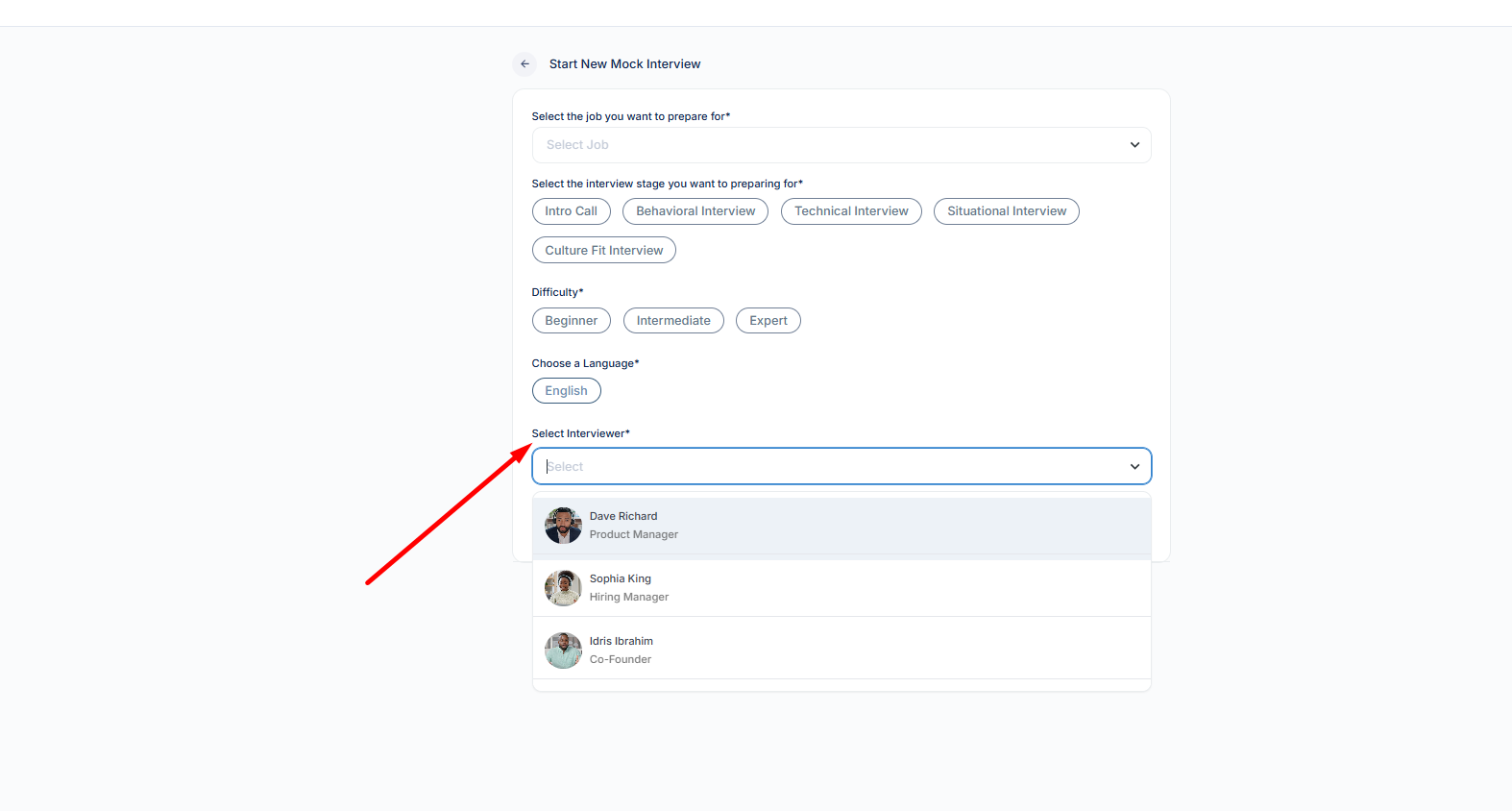
After choosing an avatar, continue to the next step to begin the interview.
6: Start Your Mock Interview
Once the setup is complete, click Start Mock Interview.
The platform will generate interview questions based on:
- The selected job
- The job description
- The interview stage
- The difficulty level
- The student’s resume or profile information, if available
(Review your selections, then click Start Mock Interview.)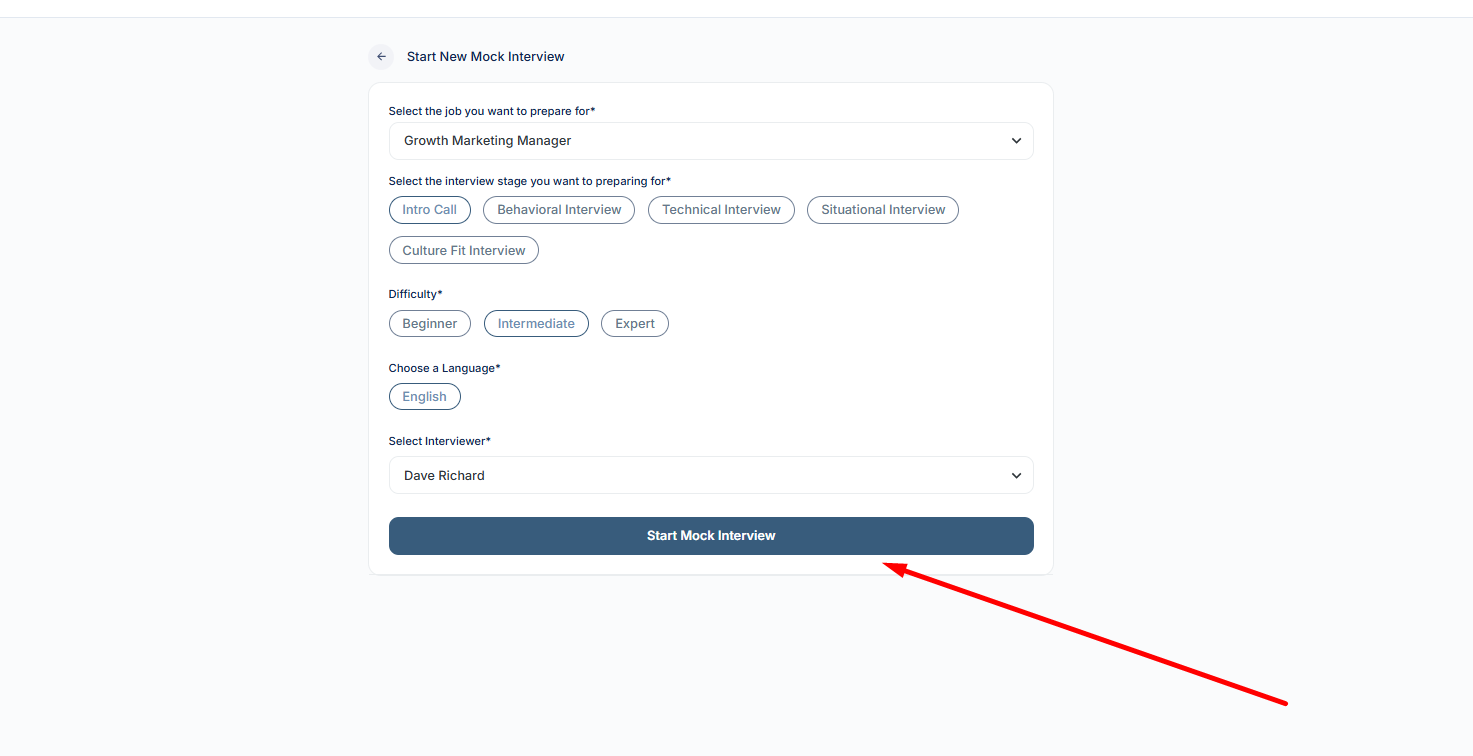
The mock interview will begin, and students will answer each question within the given time limit.
7: Answer the Questions
During the interview, students will be shown one question at a time.
They will have two minutes to answer each question. Their response will be recorded, and the transcript will appear on the right panel.
Students should answer clearly, stay focused on the question, and use examples from their experience when possible.
(Answer each question within the time limit. The platform will record the response and show the transcript.)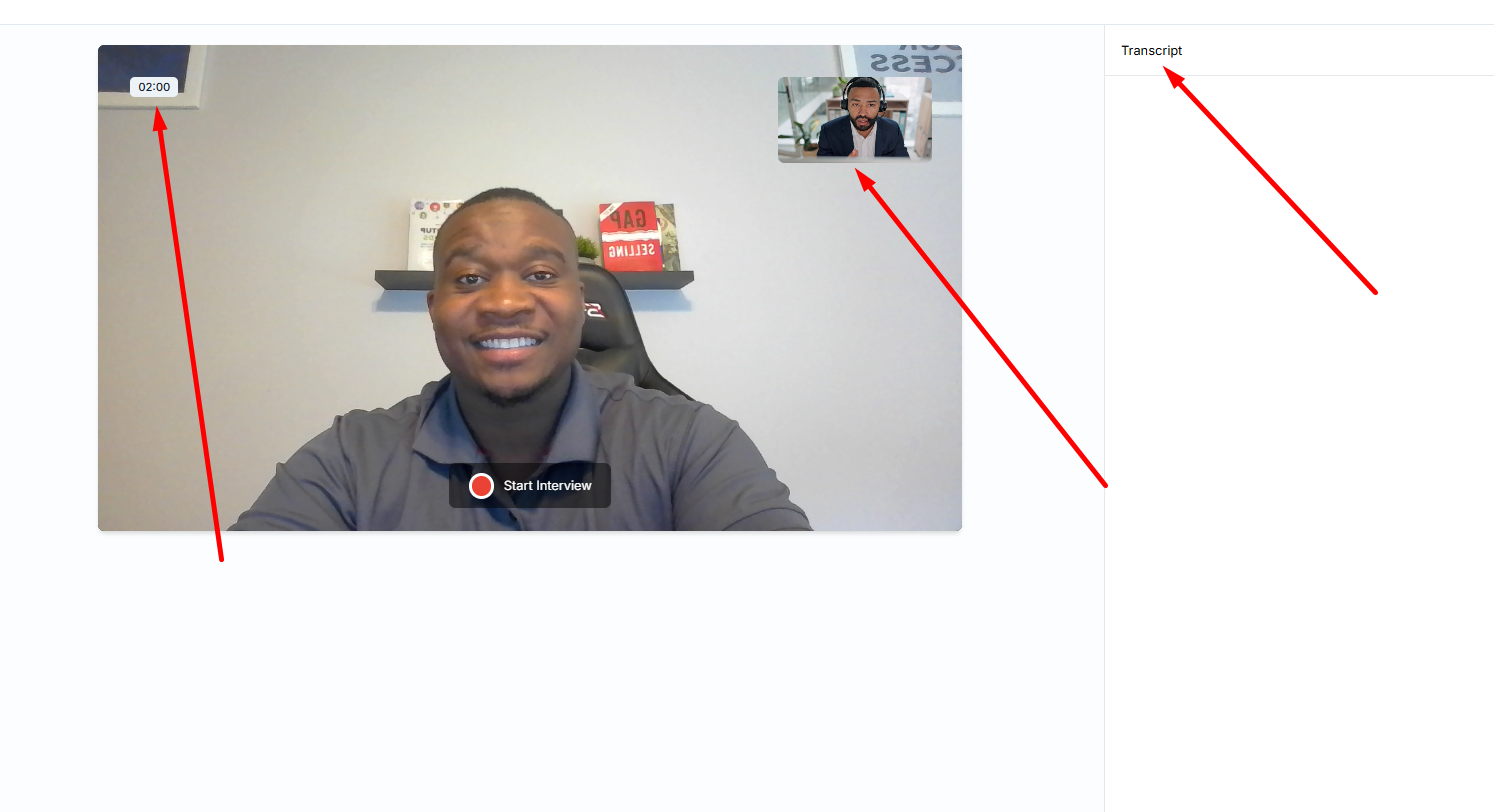
Students should speak naturally and treat the session like a real interview. This helps them practice timing, clarity, and confidence.
8: Receive Feedback and Improve
After completing the mock interview, students will receive feedback on their performance.
The feedback may include:
- Overall interview score
- Question-by-question feedback
- Strengths in the response
- Areas for improvement
- Suggestions to improve future answers
(After finishing the interview, review the feedback and performance score.)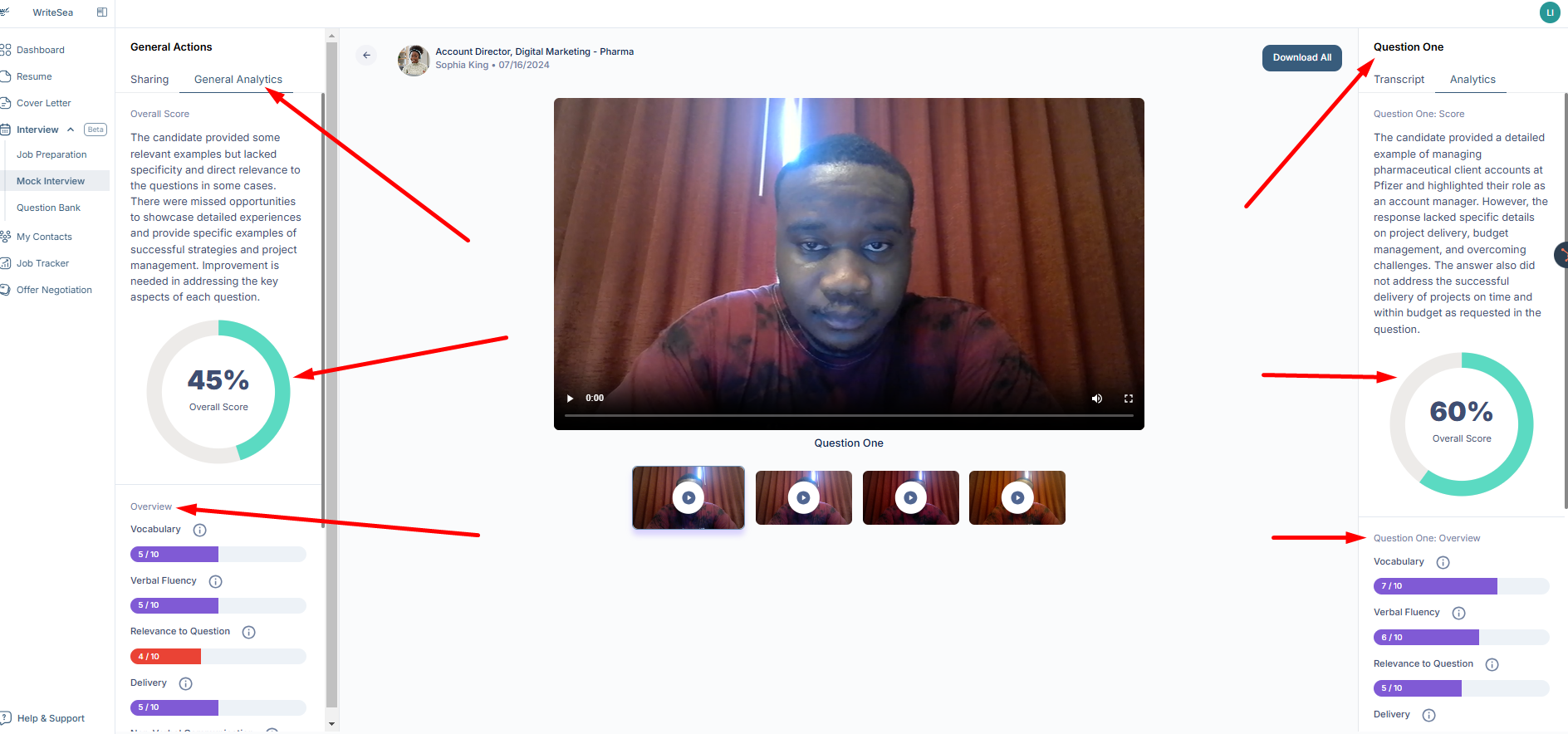
Students should use this feedback to understand what went well and what they can improve before their next interview.
9: Review and Share Your Interview
Students can review their recorded responses to evaluate their delivery, clarity, and answer structure.
They may also share their interview feedback with a career counselor, mentor, advisor, or coach for additional support.
(Use the review section to watch your responses and evaluate your performance.)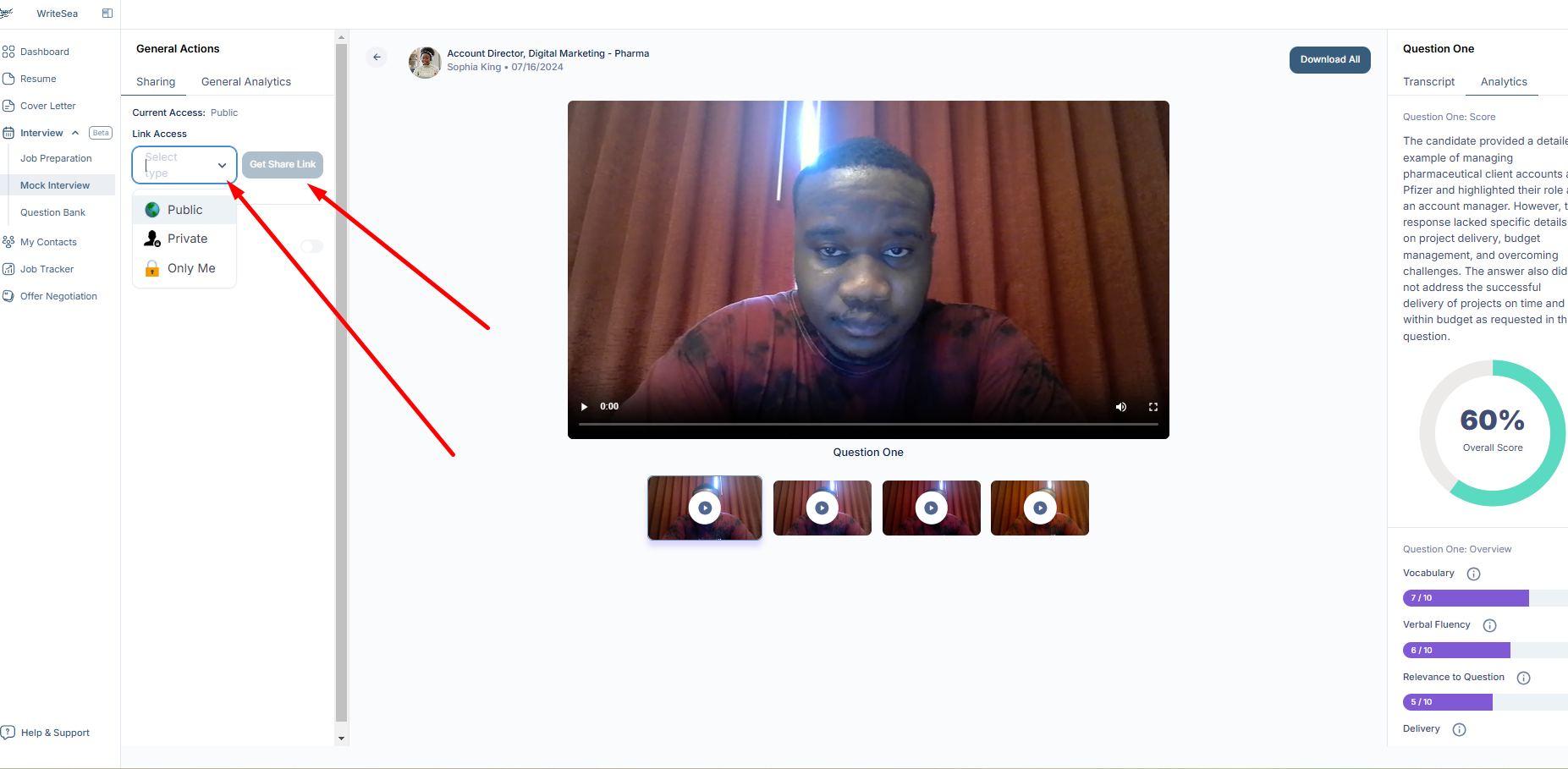
Reviewing the recording can help students notice areas they may miss during the live interview, such as pacing, confidence, answer length, or clarity.
Tips for a Better Mock Interview
Before starting a mock interview:
- Choose a quiet place
- Check your microphone and camera
- Review the job description
- Prepare a few examples from your experience
- Speak clearly and stay on topic
- Treat the mock interview like a real interview
Why This Feature Is Useful
The Mock Interview feature helps students practice before real interviews. It gives them a safe space to answer questions, receive feedback, review their recordings, and improve over time.
By using this feature regularly, students can become more confident, organized, and prepared for employer interviews.