
The Cover Letter feature in WriteSea helps students create tailored cover letters based on their resume and the job description. Instead of starting from a blank document, students can use this tool to generate a personalized draft, edit it, adjust the tone and length, and download the final version.
How To Create A Cover Letter Training Video
Watch the training video for a quick walkthrough of how to create and customize a cover letter in WriteSea.
1: Access the Cover Letter Tool
To get started, click Cover Letter from the left-side menu.
Then click New Cover Letter to begin creating a new cover letter.
(From the left-side menu, click Cover Letter, then select New Cover Letter.)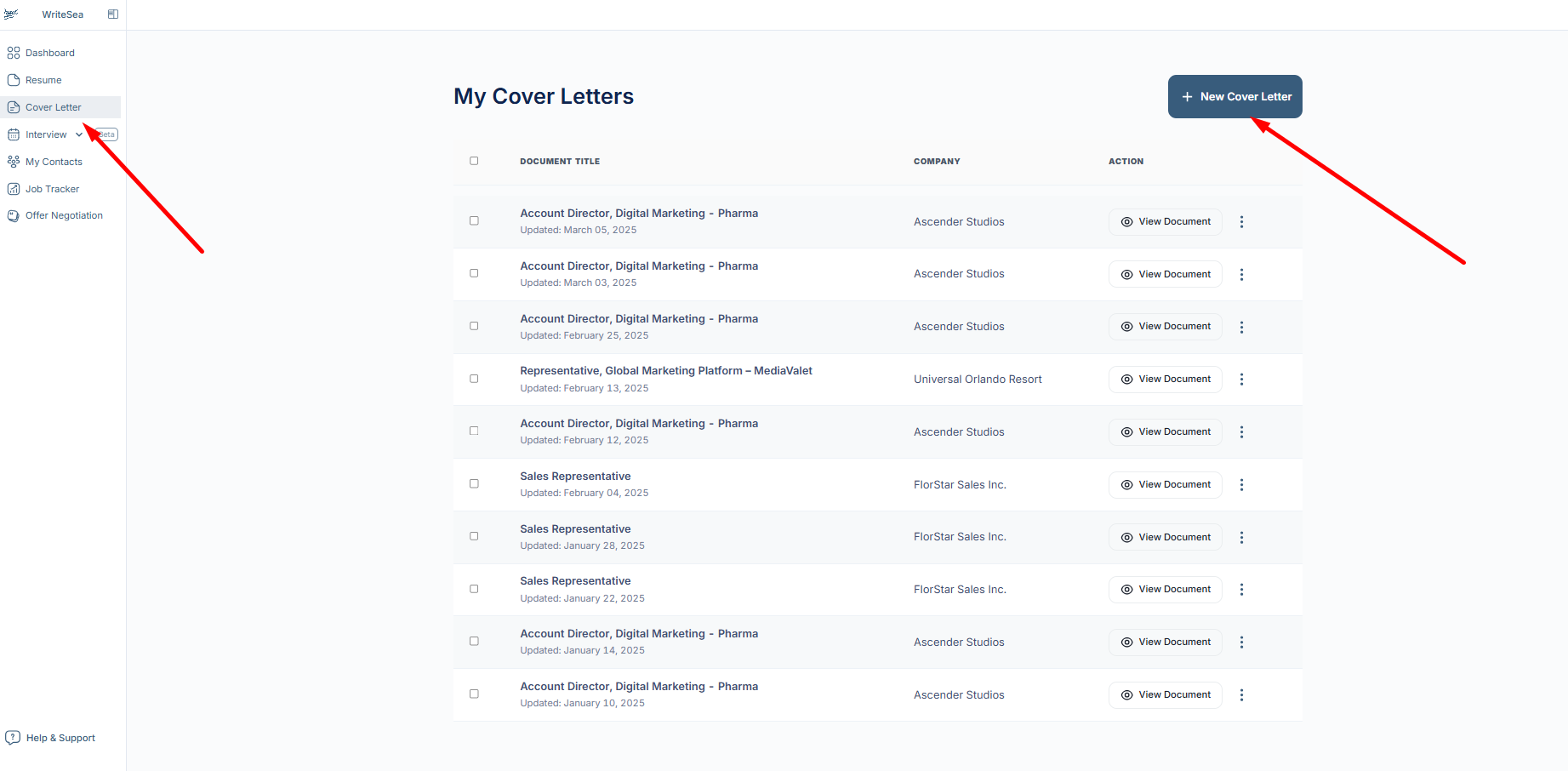
This will open the cover letter creation page, where students can select a resume and connect the letter to a specific job.
2: Select or Change Your Resume
If students have multiple resumes saved in WriteSea, they can choose the resume they want to use for the cover letter.
The selected resume gives the platform context about the student’s skills, experience, education, and qualifications.
(Select the resume you want to use, or click Change Resume if you want to use a different one.)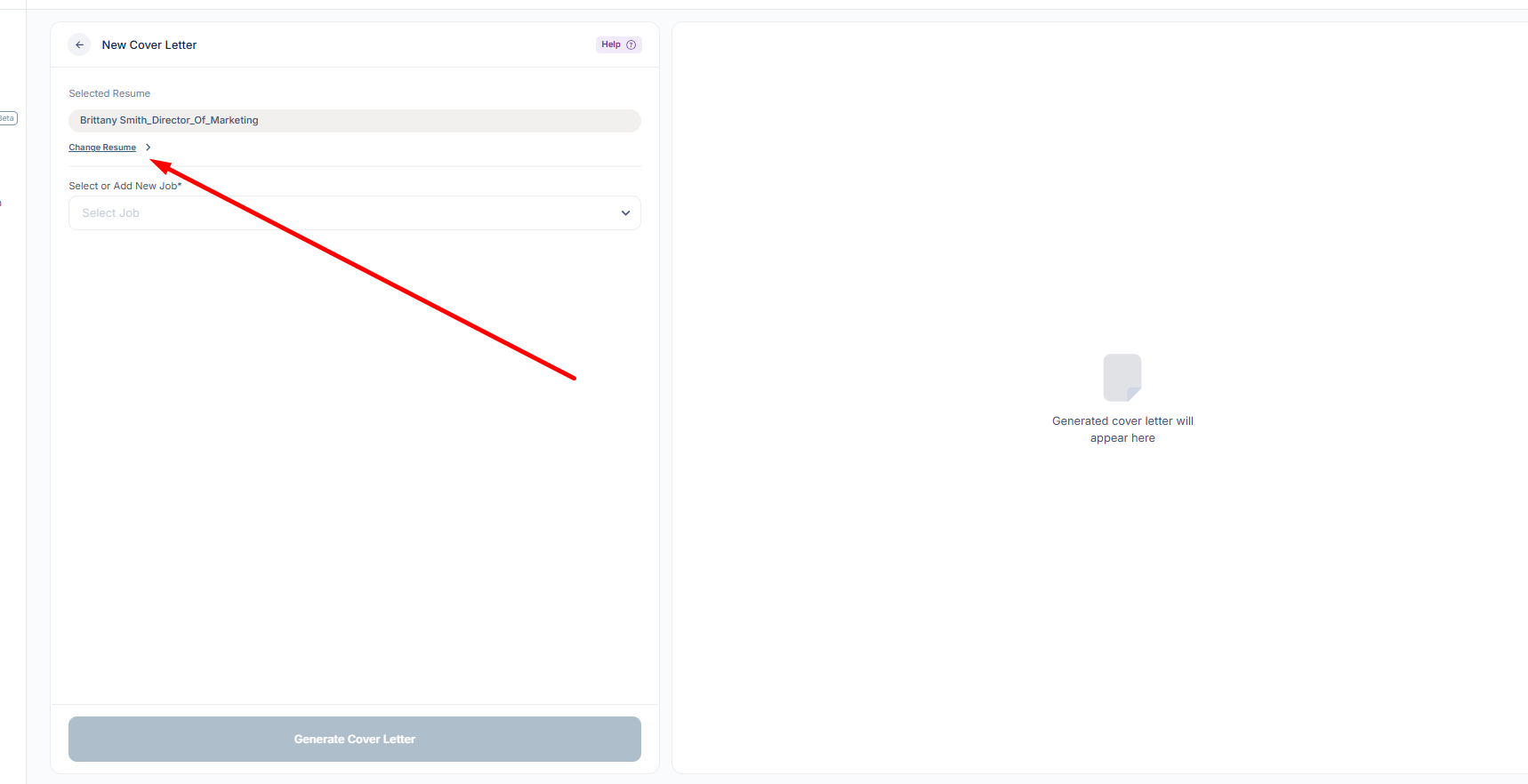
Choosing the correct resume helps the platform generate a cover letter that better matches the student’s background and the job they are applying for.
3: Add a New Job Listing
Next, students need to add the job they are applying for. This helps the platform tailor the cover letter to the role.
Students can add a job in two ways:
Option 1: Add Job Listing URL
Paste the job posting link from a job board or company website.
Option 2: Paste Listing Requirements
Copy and paste the job description or listing requirements manually.
(Click Add New Job and choose whether to paste a job listing URL or manually enter the job details.)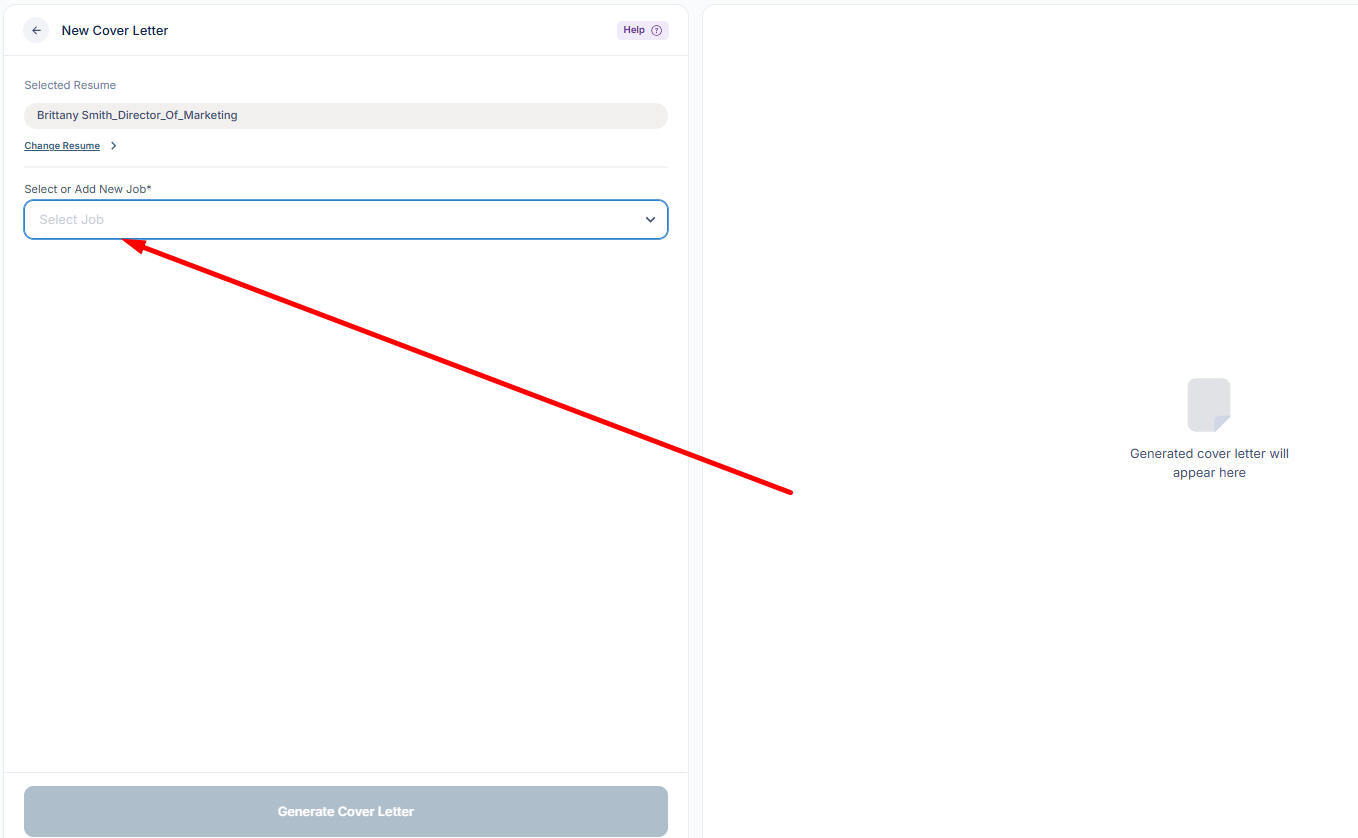
Adding the job description allows the platform to understand the role, required skills, responsibilities, and qualifications.
4: Import the Job Description
After adding the job listing URL or pasted job details, click Import Job.
The platform will review the job information and pull in the relevant details for the cover letter.
(Click Import Job so the platform can analyze the job posting.)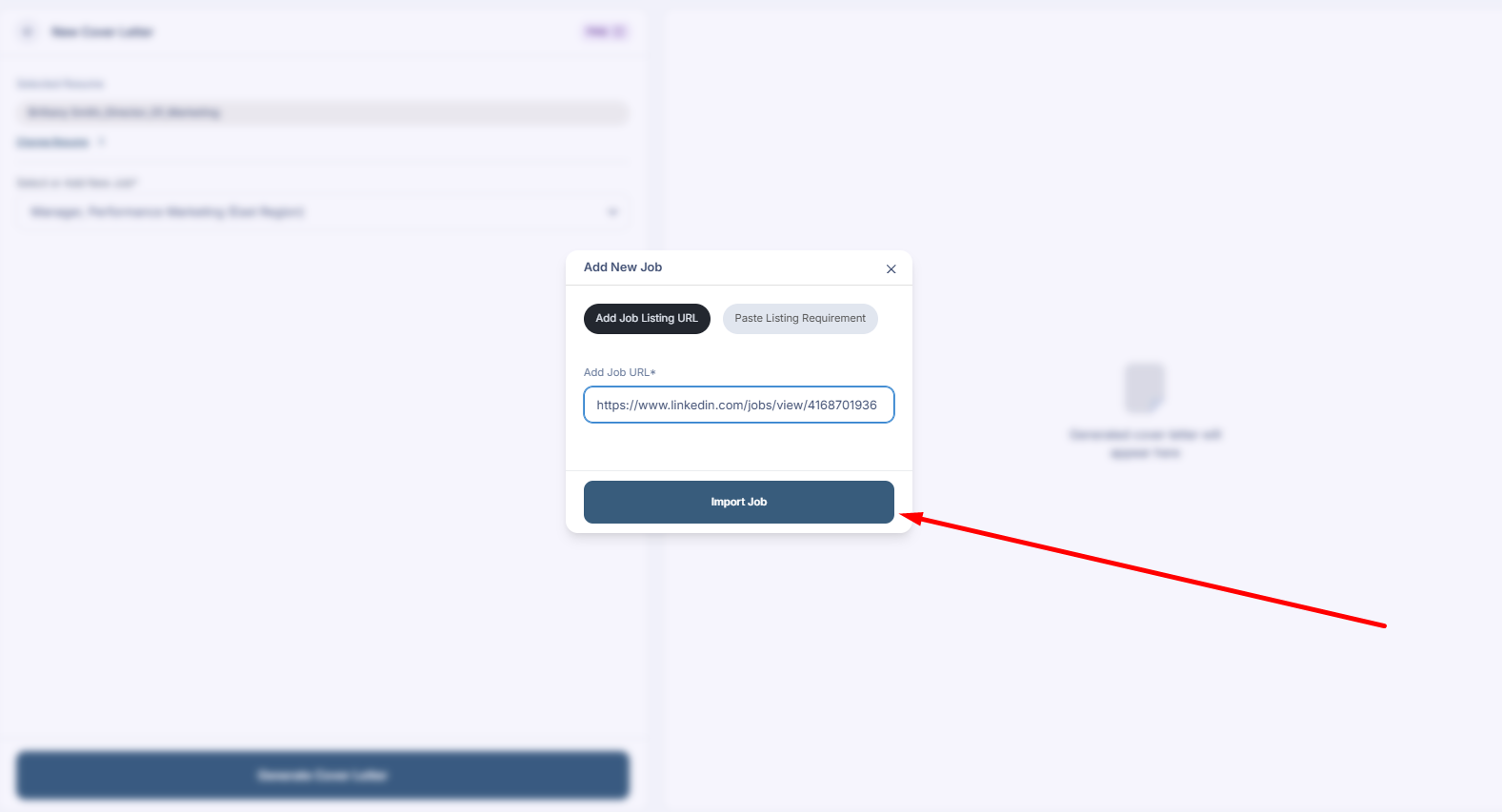
Once the job is imported, review the job details to make sure the information is accurate before generating the cover letter.
5: Generate Your Cover Letter
After the resume and job details are selected, click Generate Cover Letter.
The platform will create a personalized cover letter using the student’s resume and the job description.
(Once the resume and job are ready, click Generate Cover Letter.)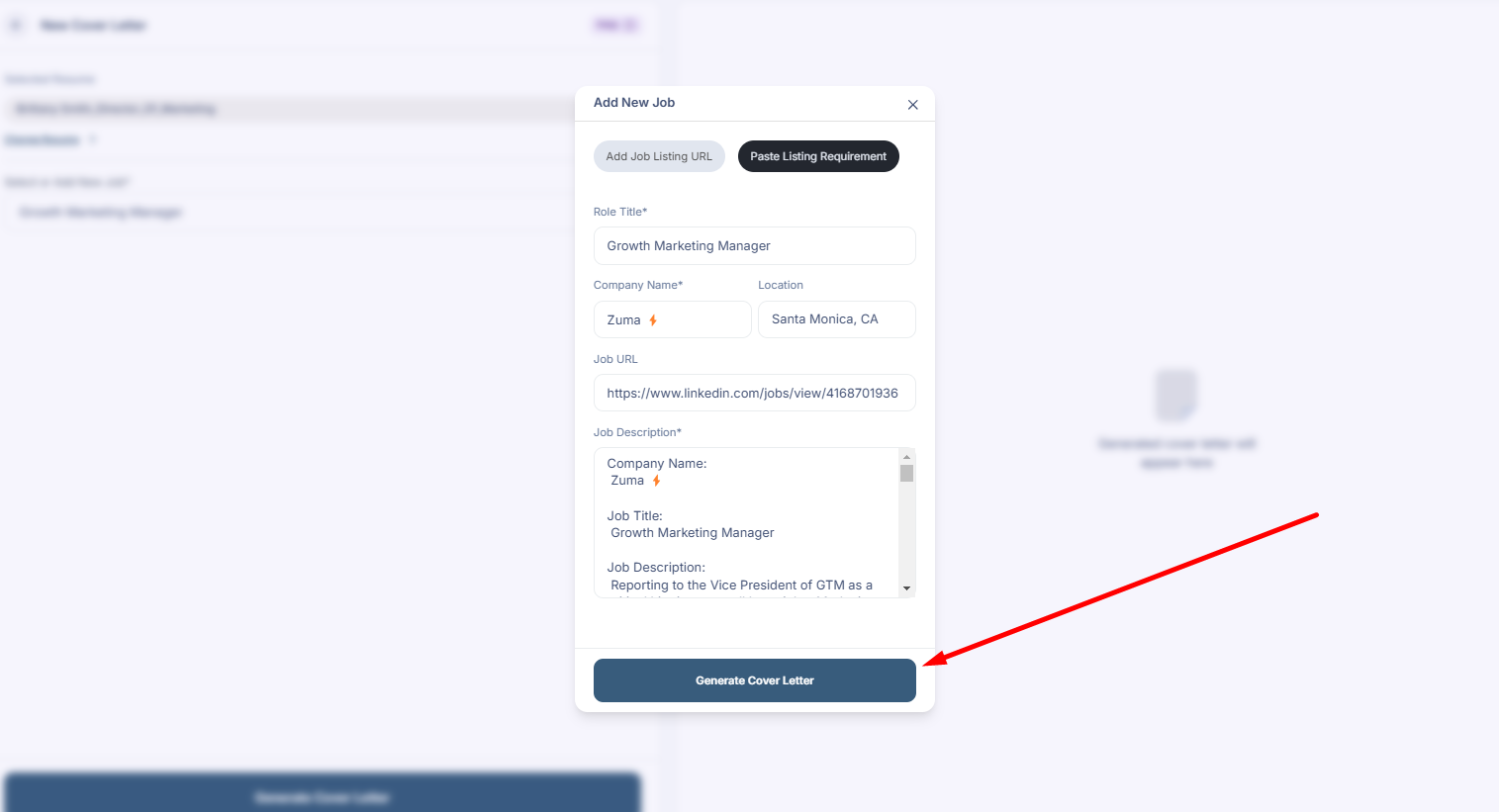
The generated draft will be based on the selected resume, the job requirements, and the role the student is applying for.
6: Review and Edit Your Cover Letter
After the cover letter is generated, students should carefully review the full draft.
They should check for:
- Correct company name
- Correct job title
- Accurate skills and experience
- Clear writing
- Professional tone
- Any missing or incorrect details
(Review the generated cover letter and make edits directly in the editor if needed.)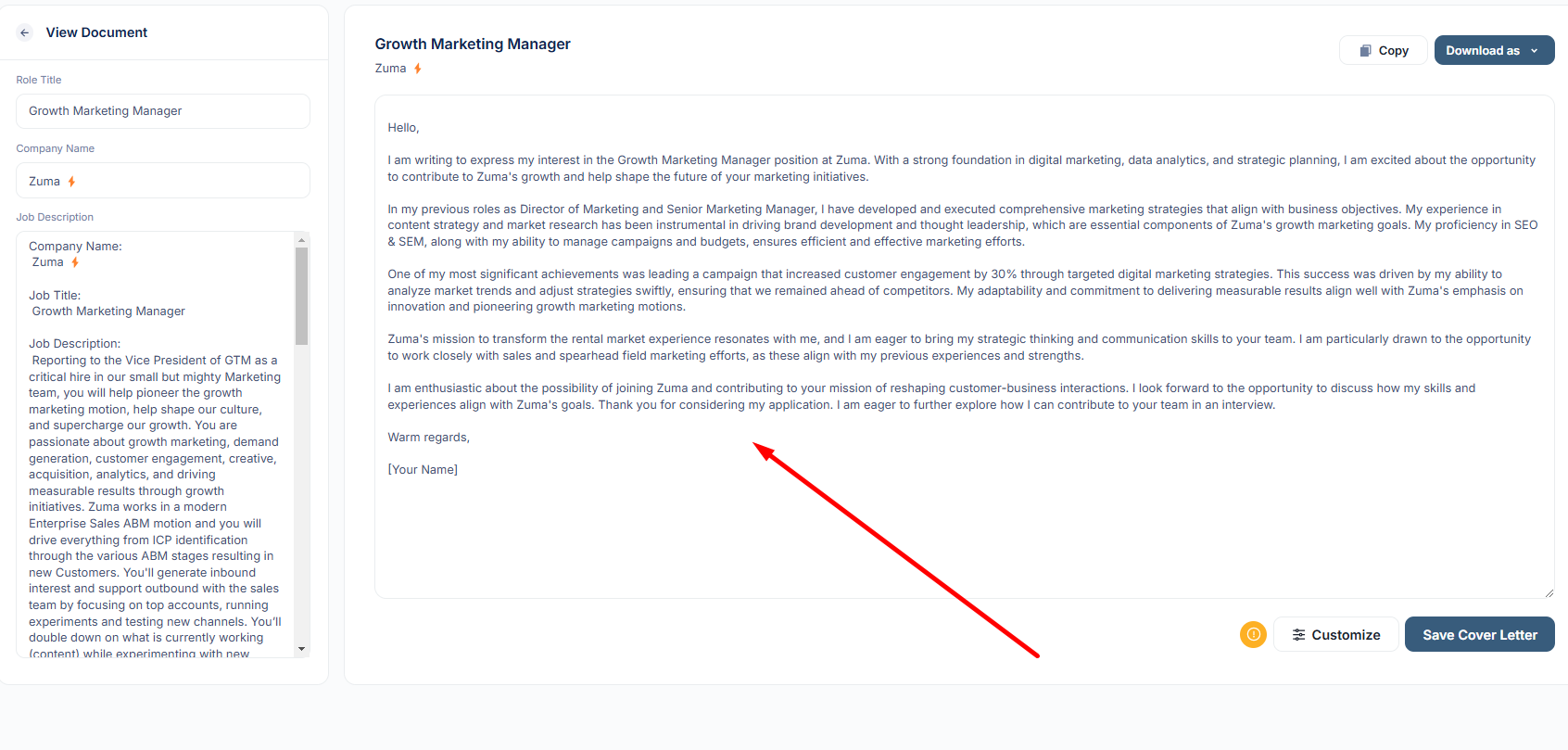
Students should personalize the draft before using it, especially if they want to add specific achievements, projects, or details about why they are interested in the role.
7: Customize Your Cover Letter
Students can click Customize to adjust the style of the cover letter.
Customization options may include:
- Tone — Neutral, Formal, Informal, Personal, or Playful
- Length — Shorter or longer versions of the letter
(Click Customize to adjust the tone and length of the cover letter.)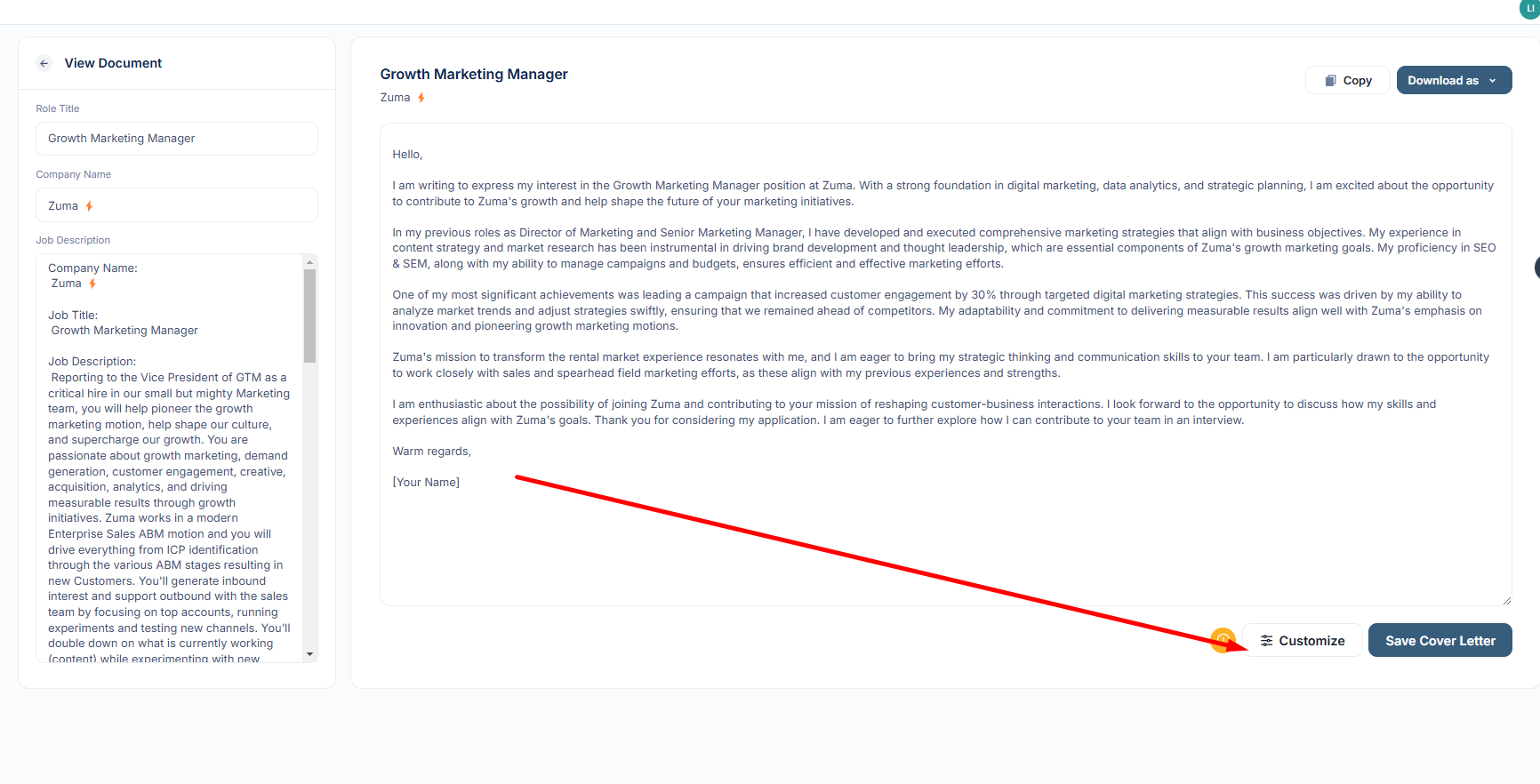
These options help students make the letter sound more appropriate for the role, company, and type of application.
8: Regenerate and Finalize
If students want a different version of the cover letter, they can use the regeneration option.
After selecting the preferred tone and length, click Replace to generate an updated version.
(Click Replace if you want to regenerate the cover letter using the selected customization options.)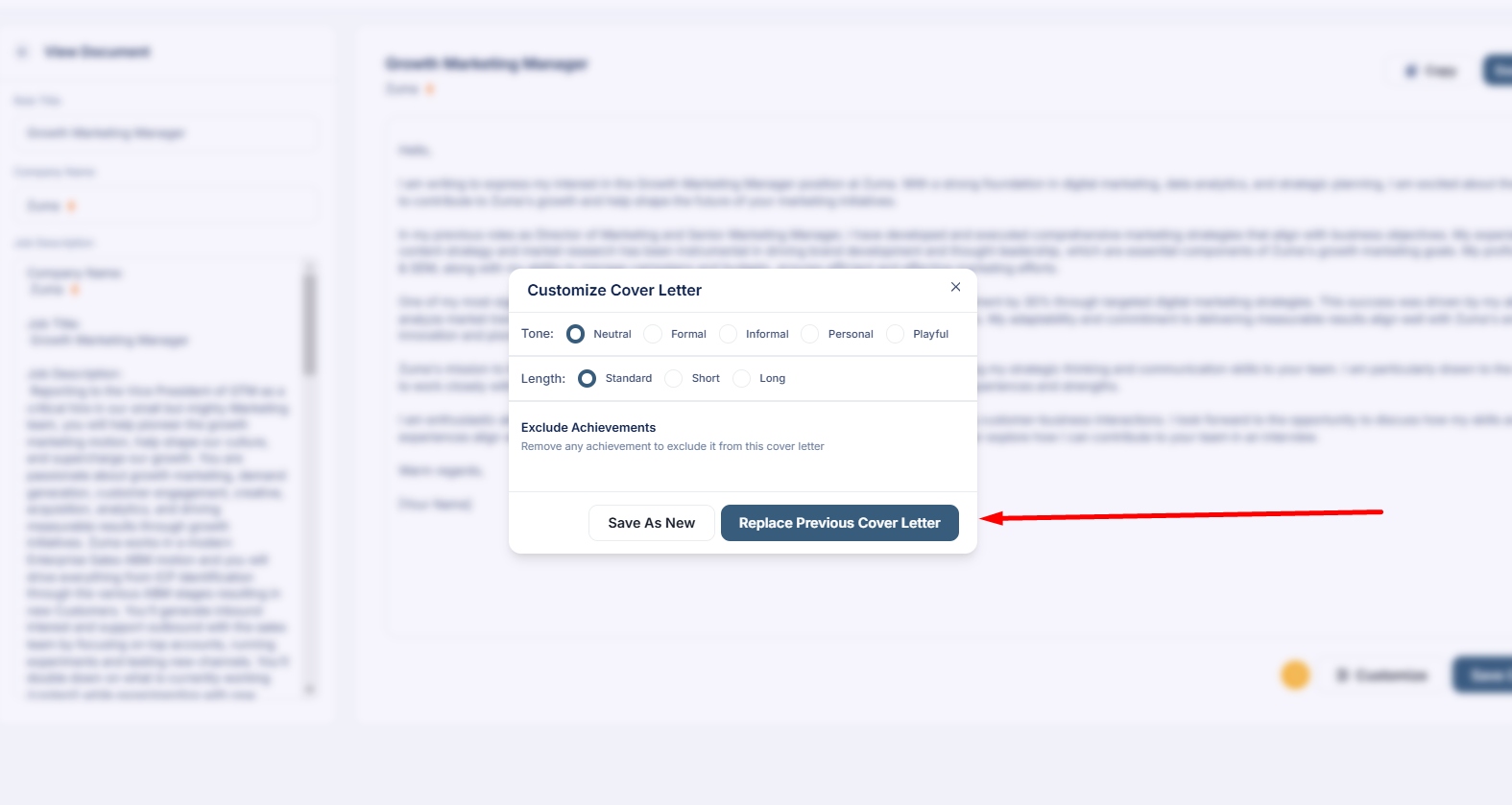
After regenerating, review the new version carefully and make any final edits before downloading.
9: Download and Save Your Cover Letter
Once the cover letter is complete, students can download it as a Word document or PDF.
Students should save the file with a clear name, such as:
FirstName_LastName_Company_CoverLetter
(When the cover letter is finalized, download it as a Word document or PDF.)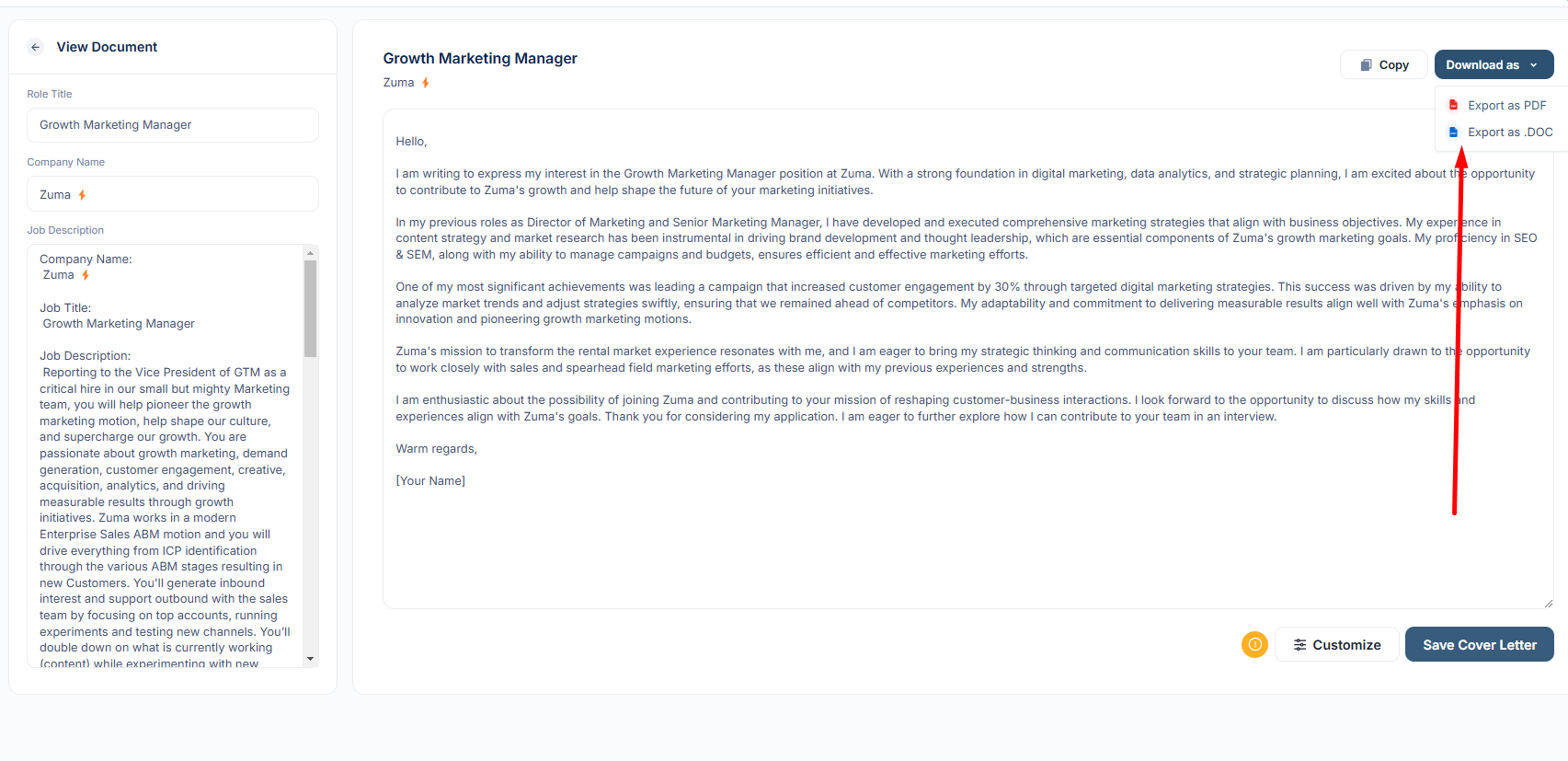
Students can then upload or attach the downloaded cover letter when applying for the job.
Best Practices Before Submitting
Before submitting a cover letter, students should:
- Review the letter for accuracy
- Make sure the company name and job title are correct
- Personalize the opening or closing if needed
- Remove any information that does not apply
- Check spelling, grammar, and formatting
- Save the final version with a clear file name
Why This Feature Is Useful
The Cover Letter feature helps students create stronger, more targeted application materials. It saves time, gives students a structured starting point, and helps them connect their resume experience to the specific job they are applying for.