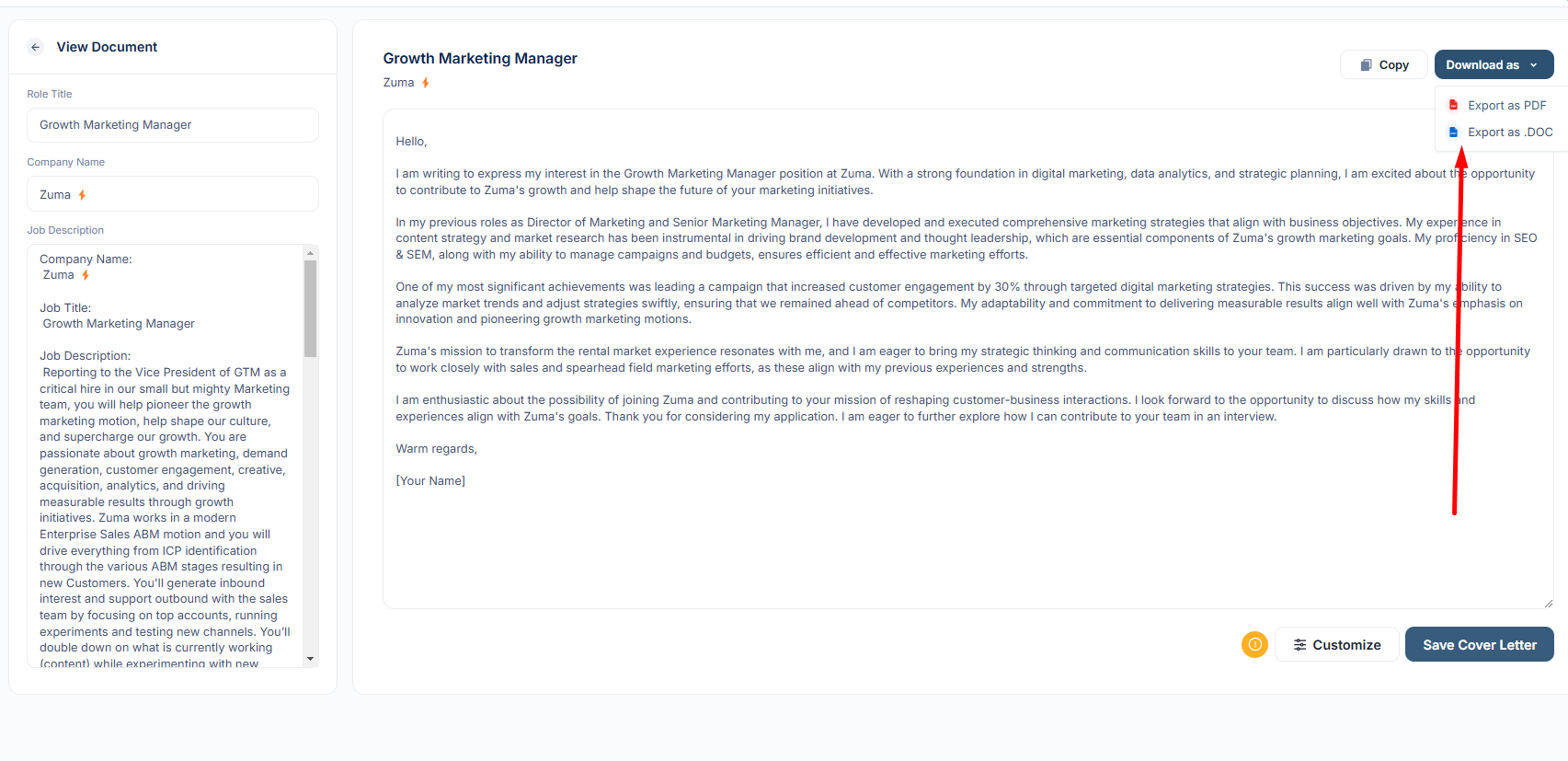
Generate tailored cover letters that align with job descriptions and highlight your key qualifications.
How To Create A Cover Letter Training Video
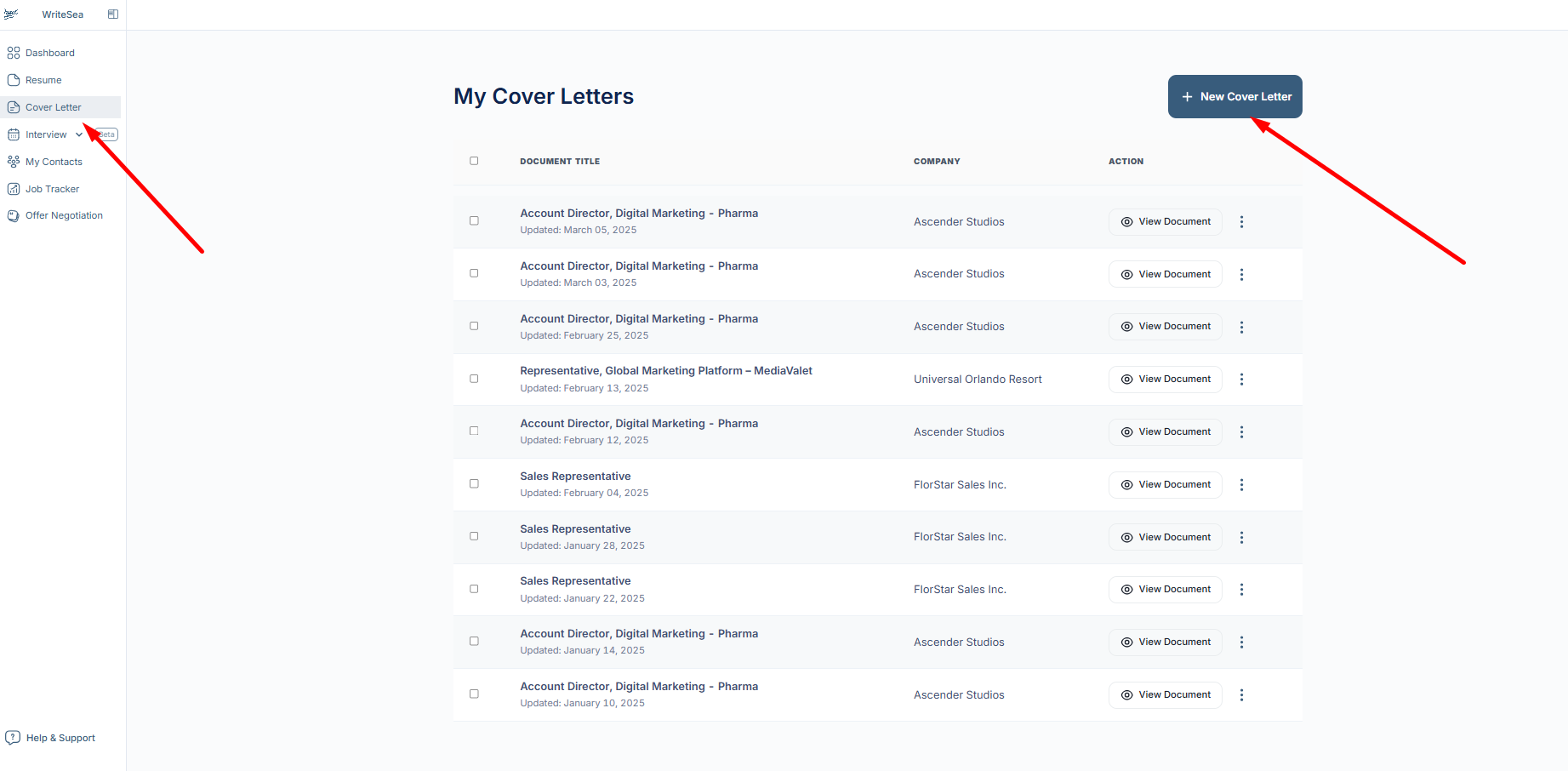
1: Access the Cover Letter Tool
- Navigate to “Cover Letter” in the left menu.
- Click “New Cover Letter” to begin.
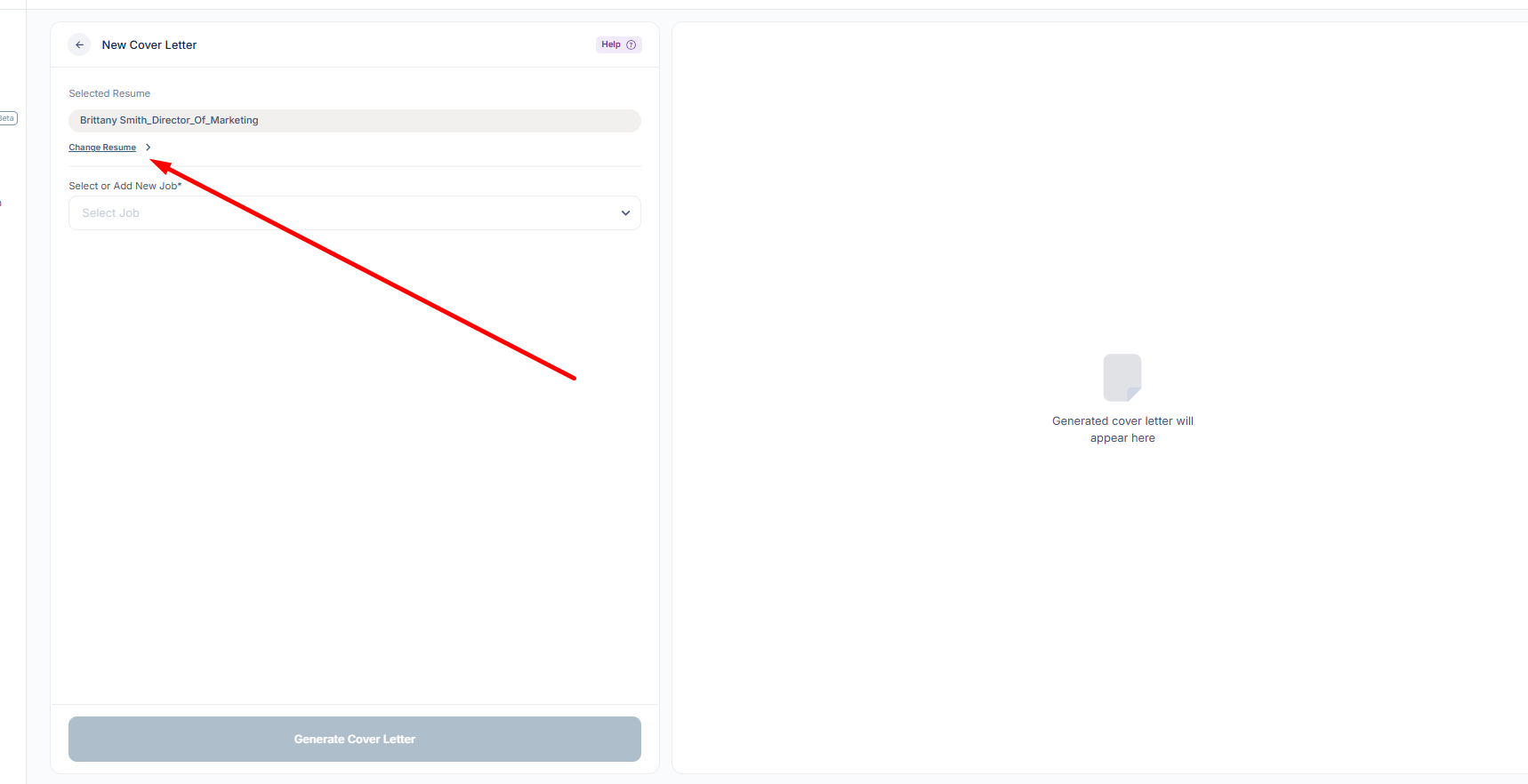
2: Select or Change Your Resume
- If you have multiple resumes uploaded, you can switch between them within the cover letter tool.
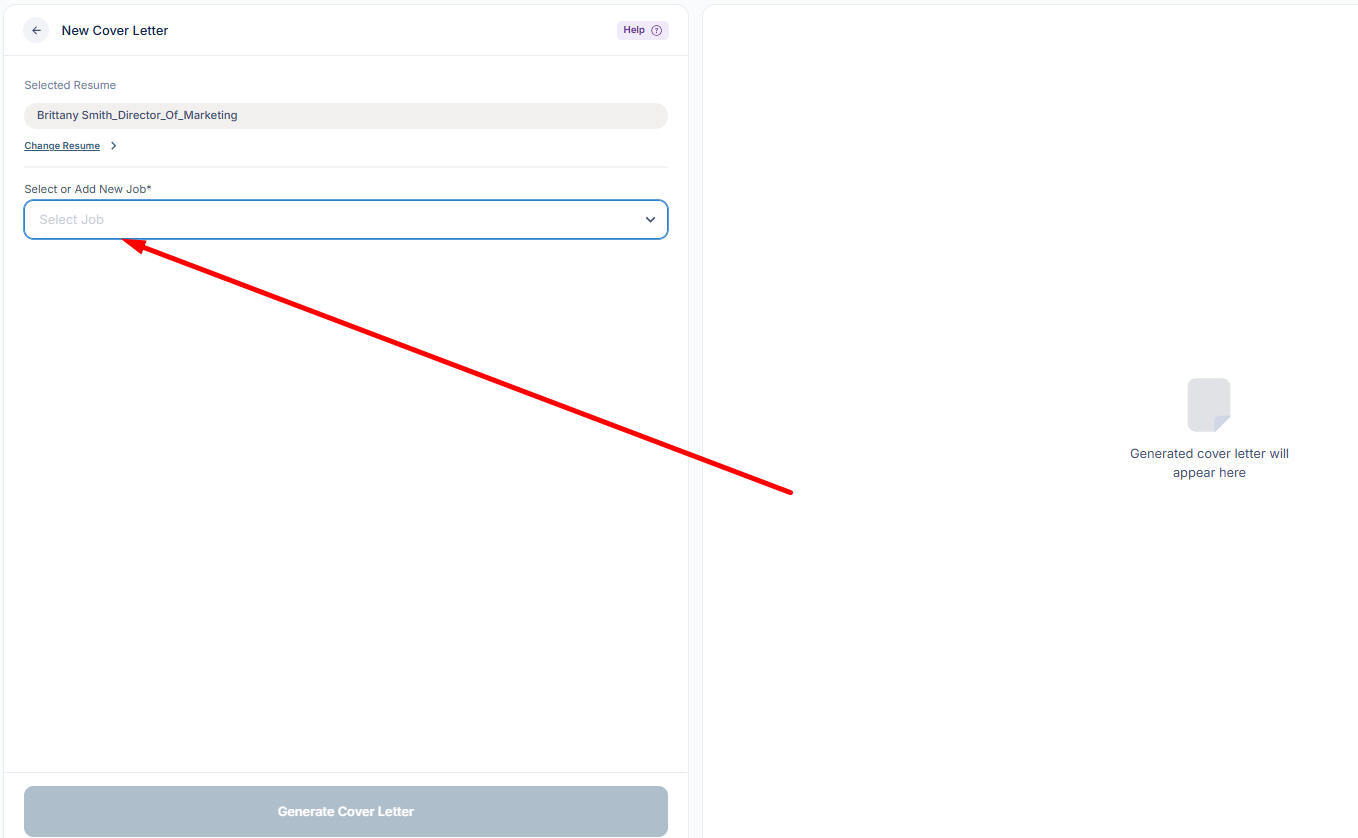
3: Add a New Job Listing
-
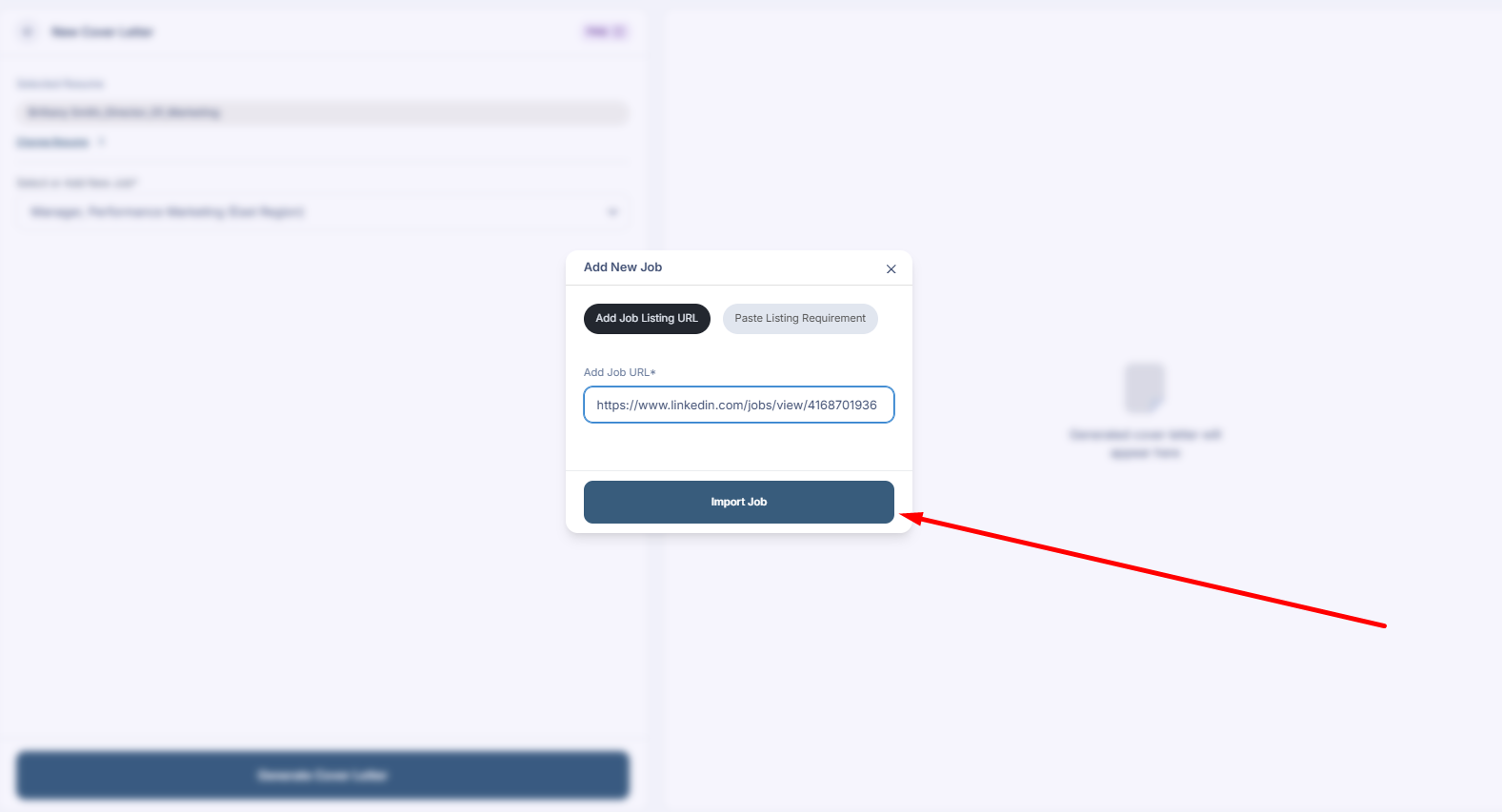
Click “Add New Job” to enter a job description.
Option 1: Paste the job listing URL from a job board like Indeed.
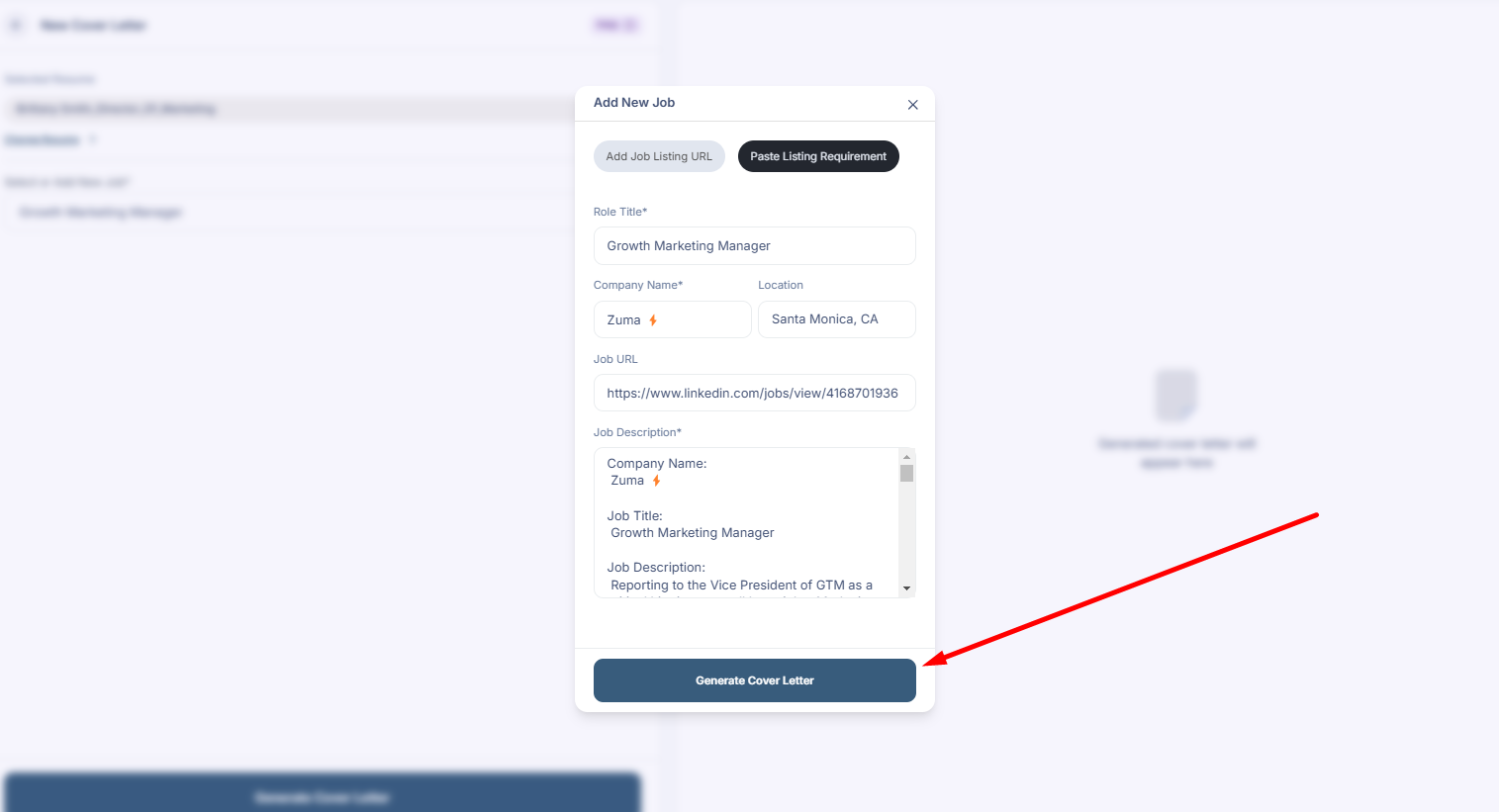
- Option 2: Click “Paste Listing Requirements” to enter the job details manually.
4: Import the Job Description
- Click “Import Job” and let the tool analyze the job posting to extract relevant details.
5: Generate Your Cover Letter
- Once the job details are pulled in, click “Generate Cover Letter”.
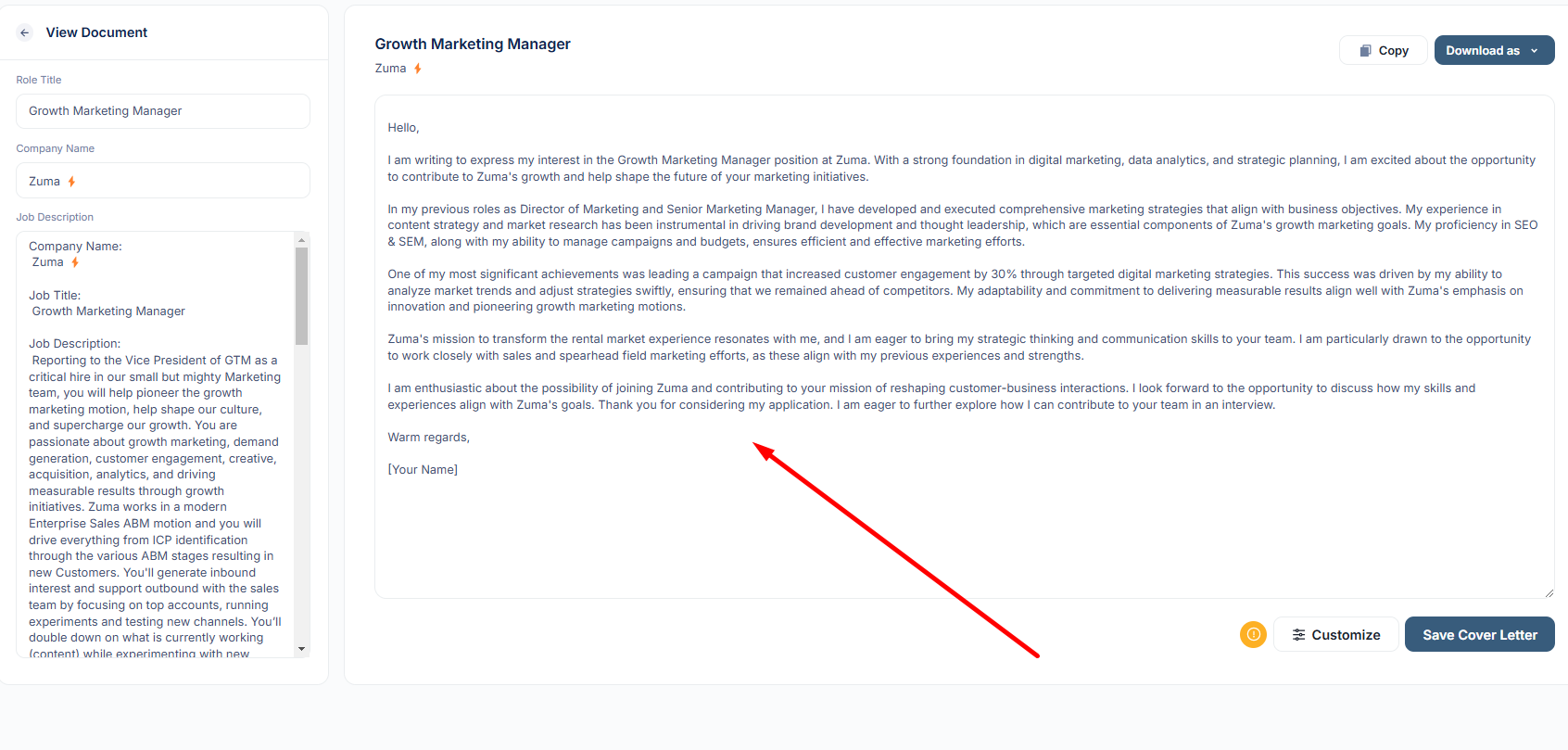
- The AI will create a personalized cover letter based on your resume and the job description.
6: Review & Edit Your Cover Letter
- Carefully read through the generated cover letter for accuracy.
- Edit any details as needed directly within the tool.
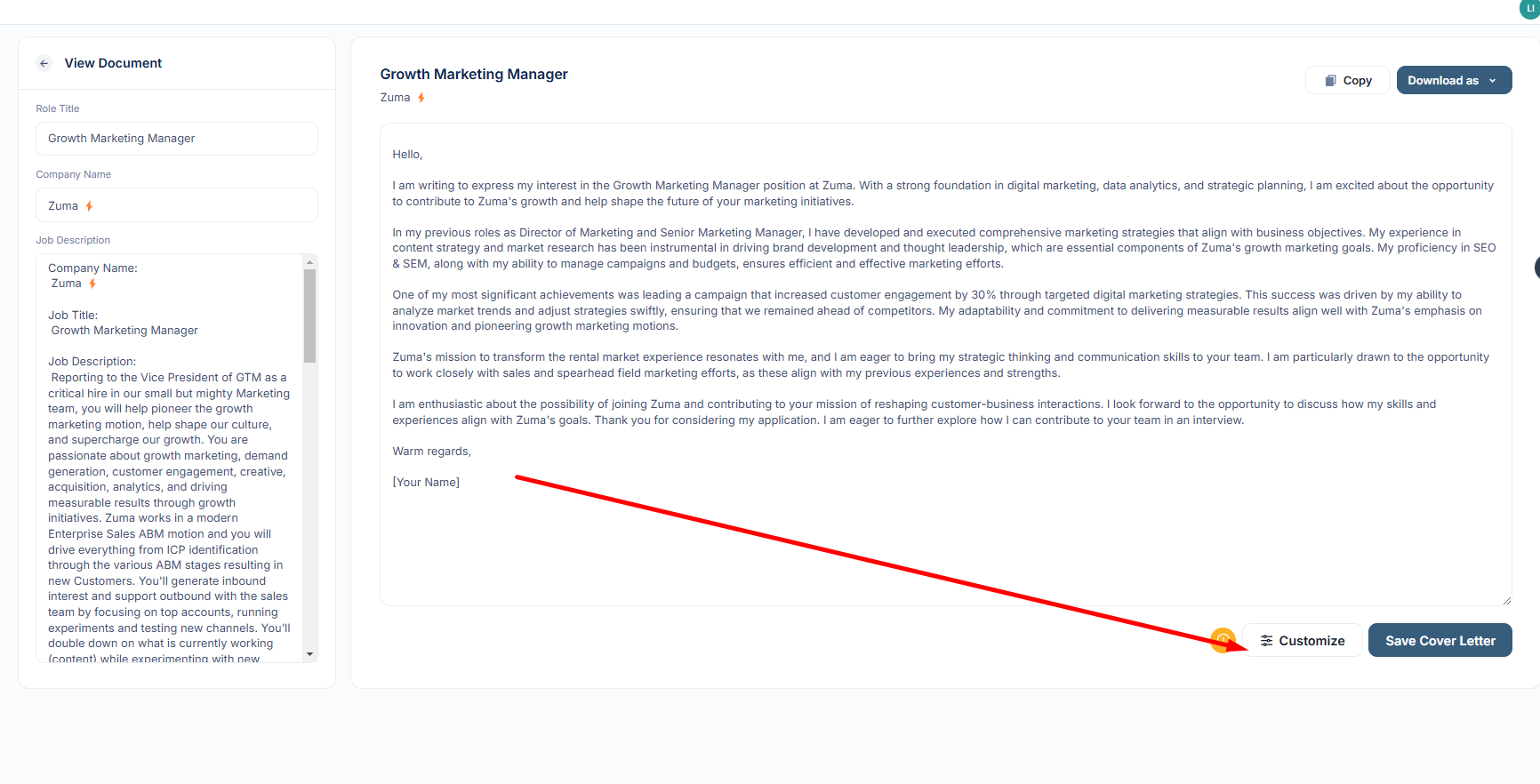
7: Customize Your Cover Letter
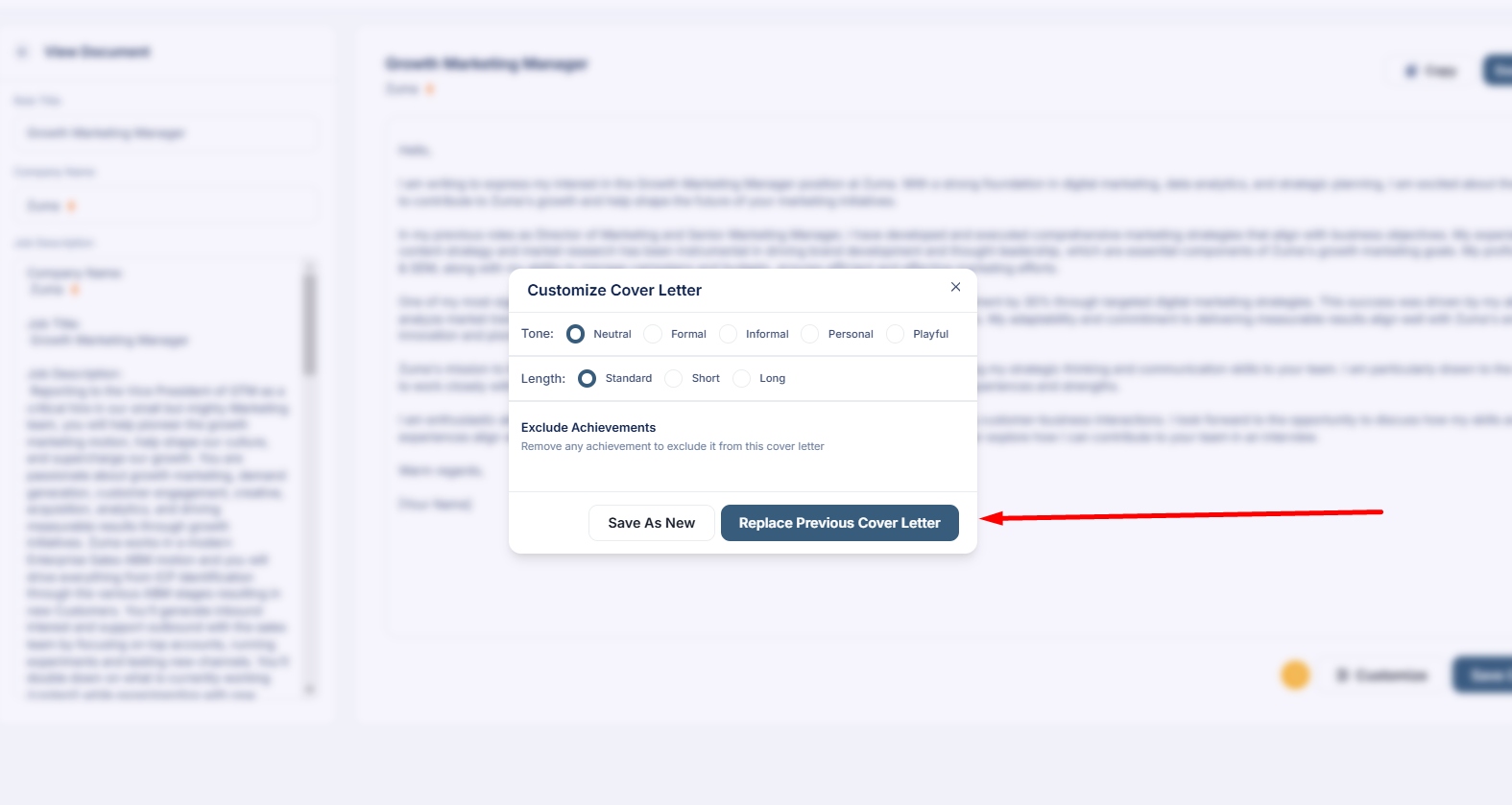
- Click “Customize” to adjust:
- Tone: Choose from Neutral, Formal, Informal, Personal, or Playful.
- Length: Adjust between shorter or longer versions of the letter.
8: Regenerate & Finalize
- If you want a new version, click “Replace” to regenerate the cover letter with your selected tone and length.
- Make final edits as needed.
9: Download & Save Your Cover Letter
- Once satisfied, download the cover letter as a Word document or PDF.
- Save it with a recognizable name for future reference.